Activating Online
Activating online is the simplest way to start using PlayIt Manager.
From the Settings > Licence page, click the Log in to your PlayIt Software account button.
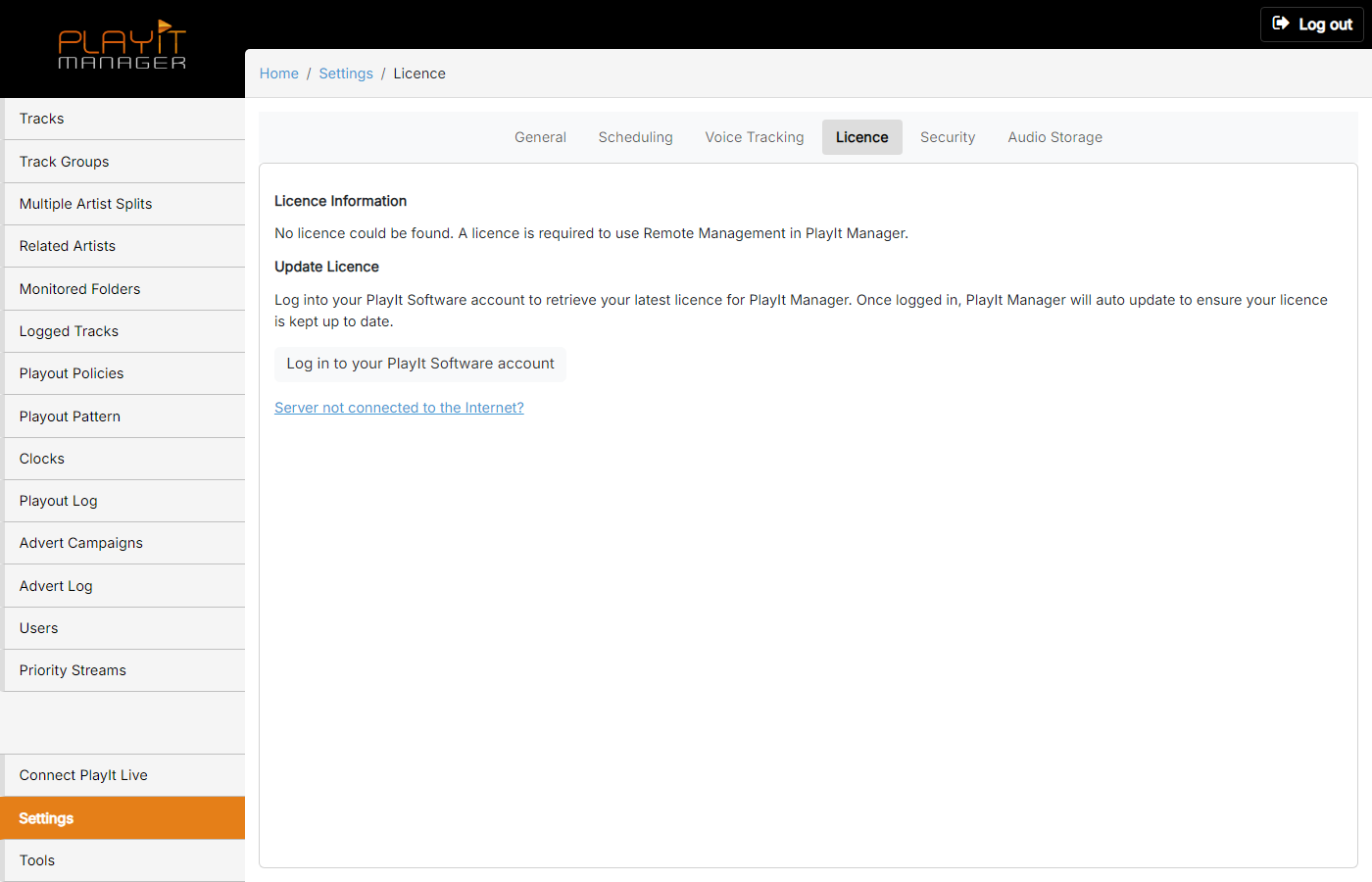
Licence Information

Your licence details appear here once activation completes.
Log in to your PlayIt Software account

Click this button to start the online activation flow.
You will be prompted to enter your PlayIt Software account username and password. If you do not have an account, click Create an account and a new window will open for you to create an account. Return to the log in window once you have created an account.
Click the Log In button to get your PlayIt Manager licence. The window will close and the licence information will be populated after a short period of time.
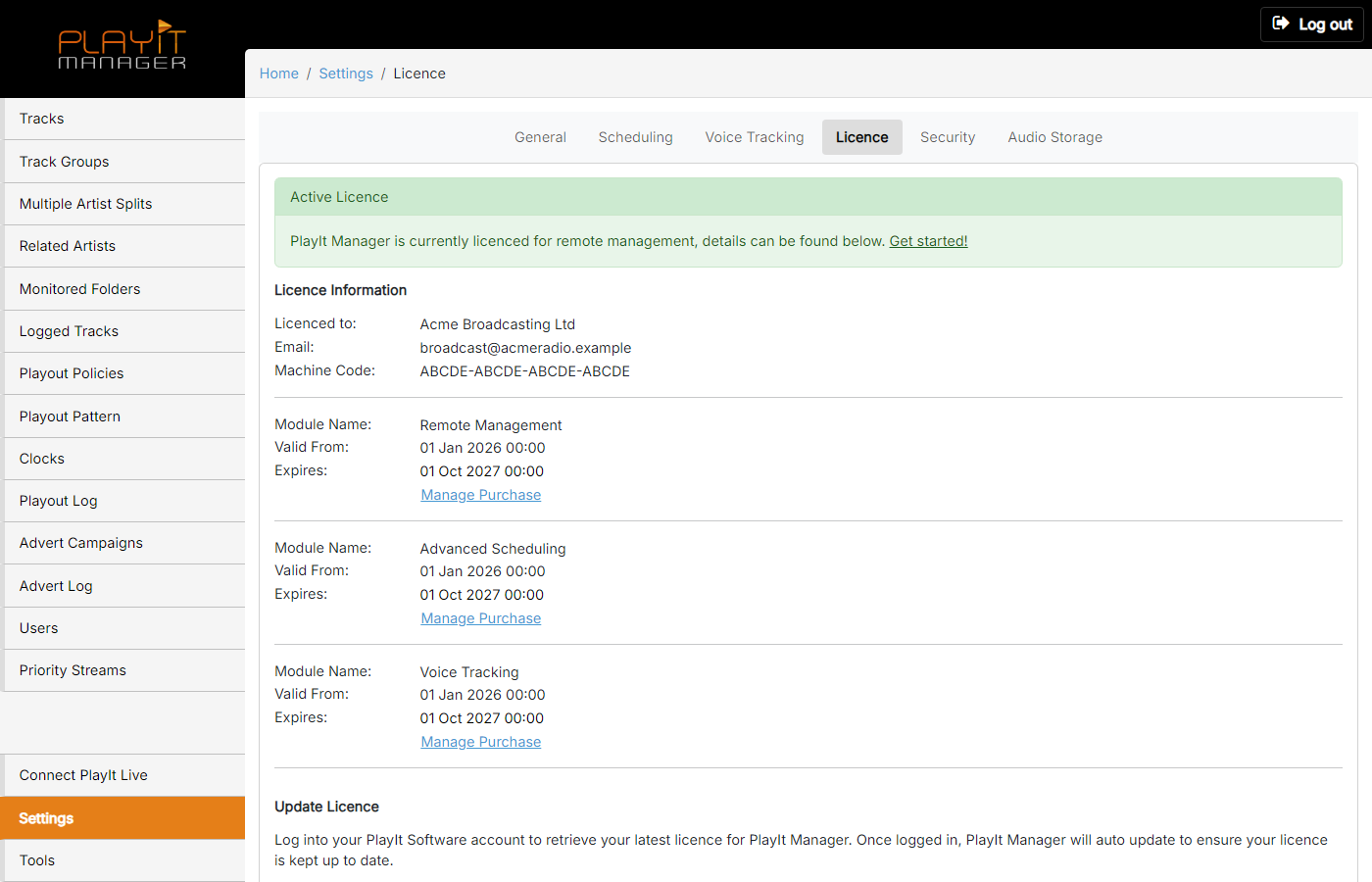
Active Licence

A green confirmation banner appears once your licence has been applied successfully.
Licence Information
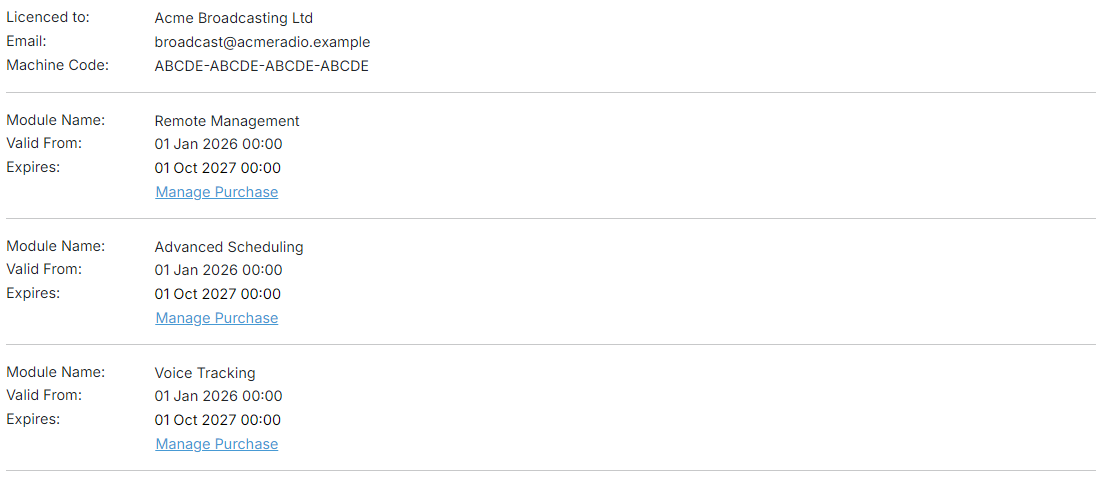
The Licence Information section is populated with the account name, email, and machine code tied to your subscription.
You are now ready to use PlayIt Manager. Click Get started! to start.
PlayIt Manager will attempt to automatically keep your licence up to date based on your PlayIt Manager subscription.
If your server is not connected to the internet, see Activating Offline.