Edit Priority Stream
The Edit Priority Stream page is opened by adding a new priority stream or editing an existing one from the Priority Streams page. For an explanation of how priority streams work, see the Priority Streams overview.
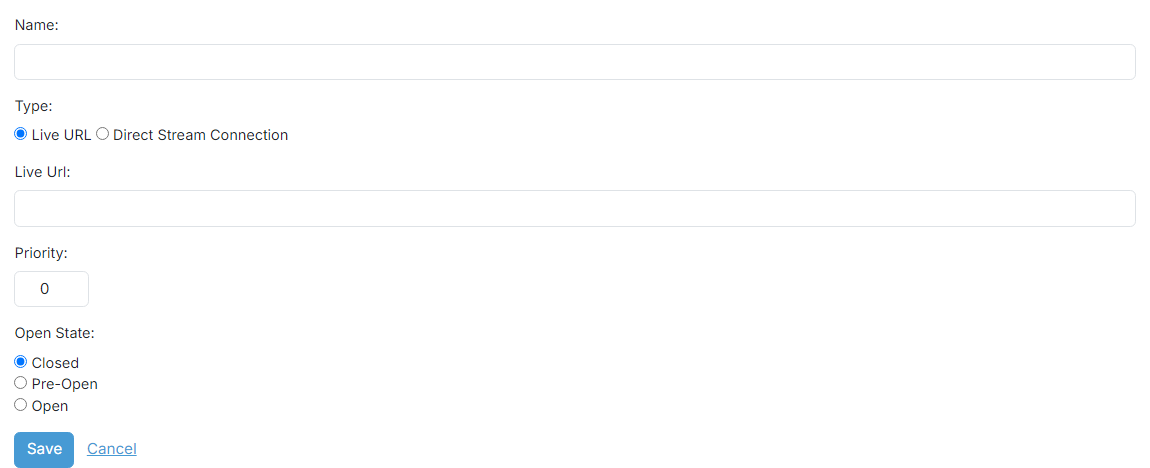
1
Name

The name of the priority stream. This identifies the stream in the list and on the PlayIt Live interface when the stream is not Closed.
2
Type

The type of the priority stream:
- Live URL: PlayIt Live connects out to a remote Icecast or SHOUTcast streaming server and pulls the audio. Enter the URL of the stream to connect to, for example
http://192.168.1.50:8000/stream. - Direct Stream Connection: PlayIt Live accepts an incoming connection from an Icecast-compatible encoder. Choose the user who will log in and stream audio to activate this priority stream. The remote source authenticates as that user and sends MP3 audio.
3
Priority

The priority of this stream. When more than one priority stream is active at the same time, the one with the highest priority goes live.
4
Open State

The open state determines whether PlayIt Live checks for a connected stream:
- Closed: PlayIt Live does not check for a connected stream and this priority stream will never go live.
- Pre-Open: PlayIt Live checks for a connected stream but it will not go live. Use this to ensure a stream is loaded and buffered before opening.
- Open: PlayIt Live checks for a connected stream. If the stream is connected, has valid audio and is above the silence threshold, the stream goes live.
Click Save to store the priority stream, Cancel to discard your changes, or Delete to remove an existing priority stream.