Importing Playout Log
The Import button on the editing playout log page opens the Import Playout Log popup, which replaces the entire selected date range with the contents of an external file. The button is disabled until you click Start Editing Log.
The importer supports three formats:
- PlayIt Playout Log Format (
.pipl): see the PlayIt Playout Log Format reference. This is the only format that round-trips every PlayIt item type, including voice tracks, fixed time markers, remote URLs and advert blocks. - M3U Playlist (
.m3u,.m3u8): see the M3U Playlist Format reference. This is a simple playlist format supported by most basic media players. - Scott Studios (SS32): supported for backward compatibility only. This format is deprecated and will be removed in a future update; please contact support if you rely on it.
When a file is imported, the existing items in the selected date range are cleared and replaced. The import is staged in the editing session and is only written to the database when you click Save on the editing playout log page.
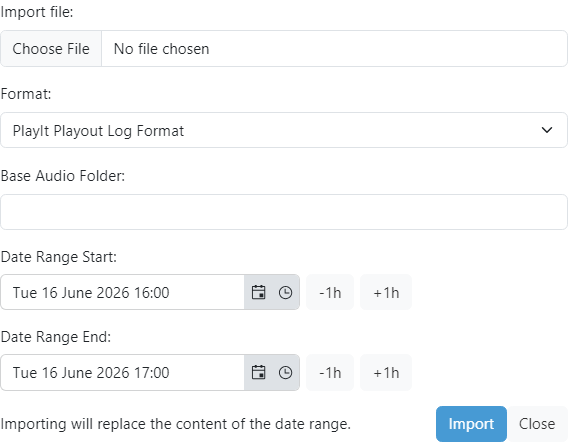
Import file

The file to import. Files larger than 5 MB are rejected with a validation error.
Format

The format of the file being imported. Pick PlayIt Playout Log Format for .pipl files exported from PlayIt Manager, M3U Playlist for .m3u / .m3u8 files, or Scott Studios (SS32) for legacy SS32 exports.
Base Audio Folder

Optional base folder used to resolve relative track paths in M3U and SS32 files. The folder is prepended to each relative path so PlayIt Live can locate the audio files. The PlayIt format always uses absolute paths so this field is ignored when importing .pipl files.
Date Range
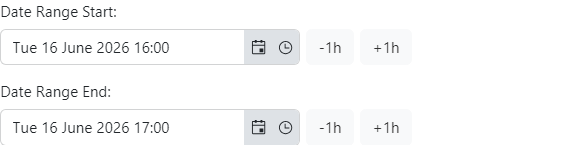
The destination date range. Defaults to the date range that was selected on the playout log page when the popup was opened. The duration of the import file content must match the duration of this range; if it does not, a validation message is shown when you click Import, along with a button to set the range to the expected end time.
Import

Validates the file against the selected format and date range and stages the items into the editing session. If validation fails the popup stays open and a list of error messages appears below the date range fields.
Close

Closes the popup without importing. The editing session is unaffected.