Scheduling Settings
The scheduling settings configure the defaults used when PlayIt Manager schedules your playout, including segue behaviour and how tracks are chosen.
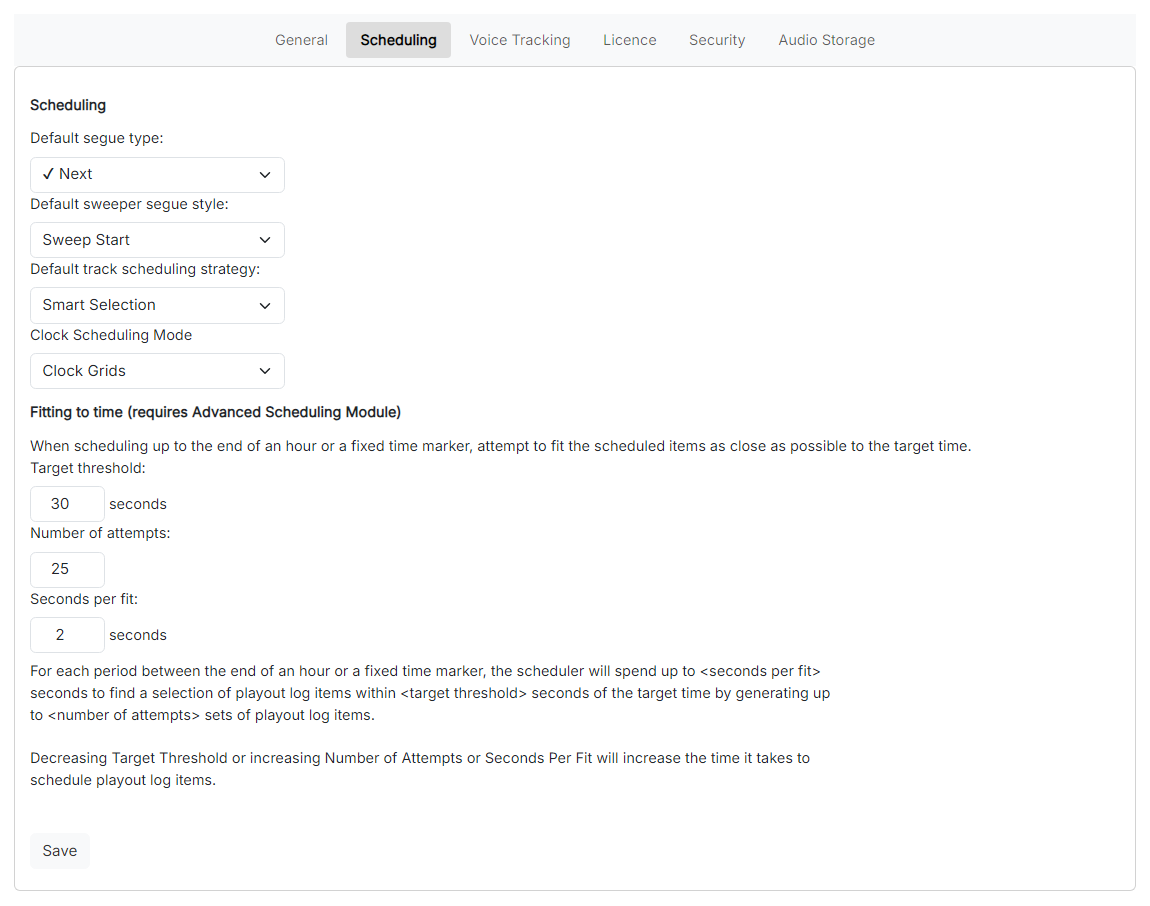
The Scheduling Settings page.
Default segue type

The segue type applied by default when one track moves to the next, for example playing the next item automatically or pausing after the current item.
Default sweeper segue style

The default style used when segueing into a sweeper, such as starting at the sweep start or the sweep intro.
Default track scheduling strategy

The strategy used when choosing tracks for Track Group clock items or track groups in the Playout Pattern:
- Smart Selection: selects a track using a weighted random algorithm. A track played longer ago is given a larger weight, increasing its chance of being selected.
- Random: selects a track entirely at random from the track group.
- Most Rested: selects the track from the track group that was played longest ago.
Clock Scheduling Mode

Chooses between the legacy clock calendar and the Clock Grids workflow. Switching mode changes how clocks are scheduled, so a confirmation is shown before the change is applied.
- Clock Grids lets you build reusable weekly templates and layer them together. A single clock grid can always be used; layering multiple grids is the Advanced Scheduling workflow and requires a licence with the Advanced Scheduling module. See Scheduling Clocks.
- Legacy (Calendar) presents the schedule as a weekly calendar that you fill in one entry at a time. See Legacy (Calendar).
If you are moving from Legacy (Calendar), the Migrating to Clock Grids wizard converts your existing schedule and keeps the legacy schedule stored so you can switch back here at any time.
Fitting to time
When scheduling up to the end of an hour or a fixed time marker, PlayIt Manager tries to fit the scheduled items as close as possible to the target time. These settings control how precisely it fits, and how long it is allowed to spend doing so:
- Target threshold: the maximum number of seconds the scheduled items may differ from the target time. The default is 30 seconds; decreasing it makes scheduling more precise but take longer.
- Number of attempts: how many combinations of playout log items PlayIt Manager generates for each period while trying to fit to time, picking the first one that fits within the target threshold. The default is 25; increasing it makes scheduling take longer.
- Seconds per fit: the maximum number of seconds PlayIt Manager spends fitting each period to time. The default is 2 seconds; increasing it makes scheduling take longer.
In short, PlayIt Manager generates up to Number of attempts combinations for each period, spending at most Seconds per fit on each, and picks the first that lands within Target threshold of the target time.
For more detail on fitting to time, see the PlayIt Live documentation.
Note: The Advanced Scheduling module is required to change the fitting-to-time parameters.
Save

Save your changes.