Editing Users
The user editor is opened by adding a new user or editing an existing one from the users list. It controls who the user is, how they log in and what they are allowed to do.
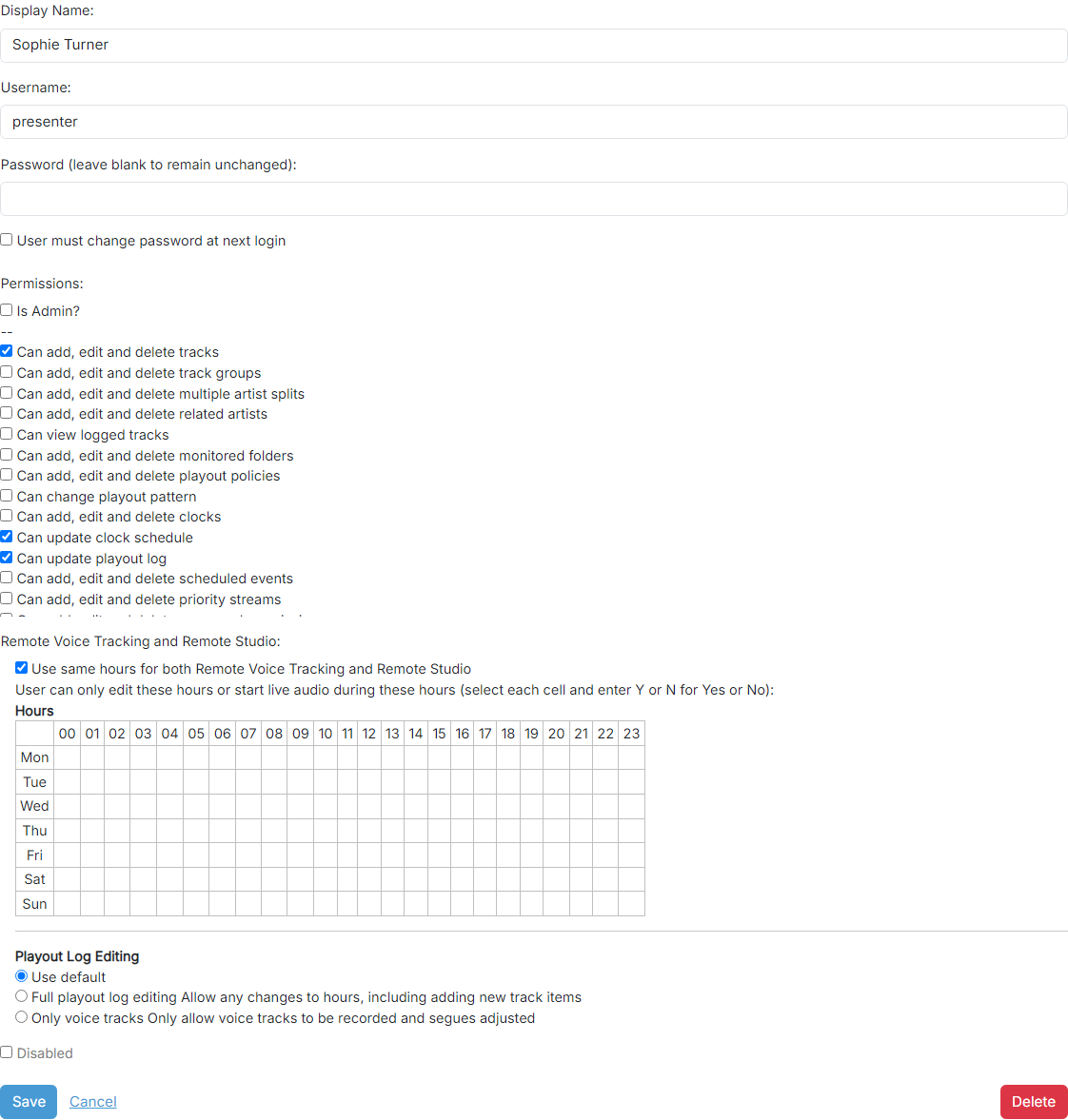
Display Name

The real name of the user. This is displayed on PlayIt Live on the main interface to show who is currently logged in.
Username

The username used by the user to log in. This must be unique and cannot be used by any other user.
Password

The password used by the user to log in. The password must be at least 6 characters long. When editing an existing user, leave this blank to keep the current password.
Tick User must change password at next login to require the user to set a new password they can remember the next time they log in.
Passwords are cryptographically hashed and stored in the database. The actual password is not stored, so it cannot be retrieved if forgotten. Please take care not to lock yourself out of the system.
Permissions
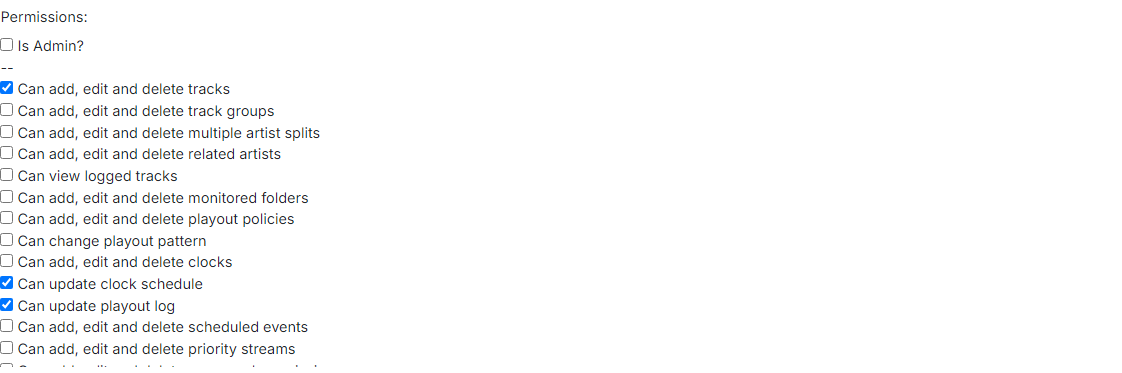
Select what the user is allowed to do. Ticking Is Admin? lets the user use any feature and perform any action. Where a user does not have permission for a particular action, that section is disabled or hidden in the user interface.
Remote Voice Tracking and Remote Studio Hours
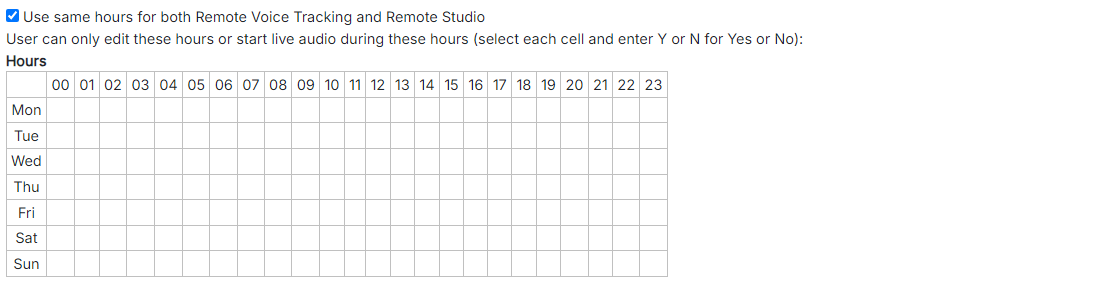
Select hours here to give this user access to remotely voice track into the playout log at those hours.
Playout Log Editing

Restrict what the user can do when remote voice tracking. You can allow them to edit the full playout log for the hours they have access to, or only allow them to record voice tracks and adjust their segues. The default for new users is set on the Voice Tracking tab.
Disabled

Tick this box to disable the user, preventing them from logging in.
Operations

Click Save to save the changes, Cancel to discard them, or Delete to remove the user.