Activating Offline
If the computer on which you have installed PlayIt Manager is not connected to the internet, it is possible to activate offline.
From the Settings > Licence page, click the Server not connected to the Internet? link.
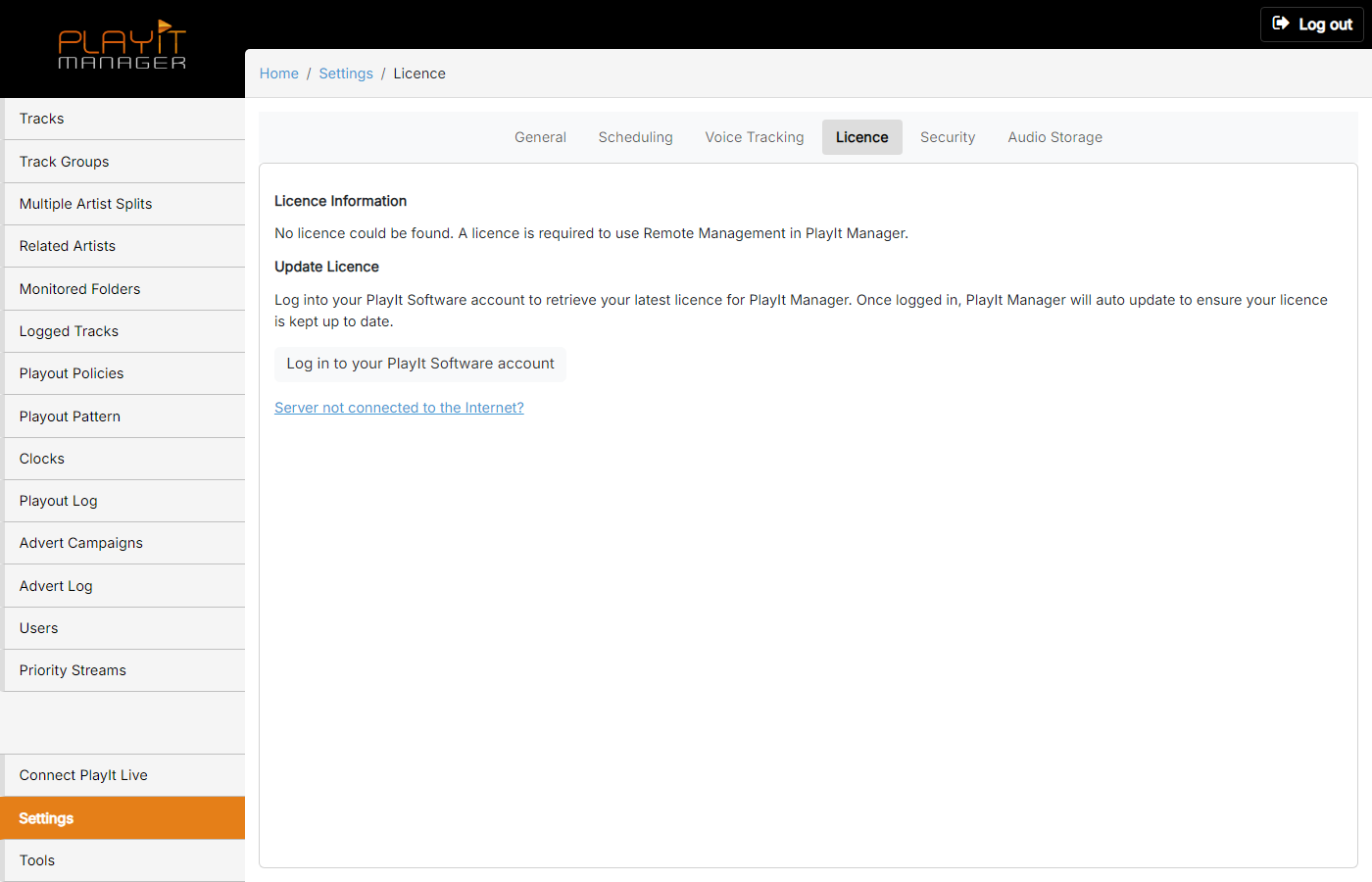
Server not connected to the Internet?

Click this link to reveal the offline activation form.
A new section will be displayed with instructions to activate offline. Follow these instructions to generate a licence for PlayIt Manager.
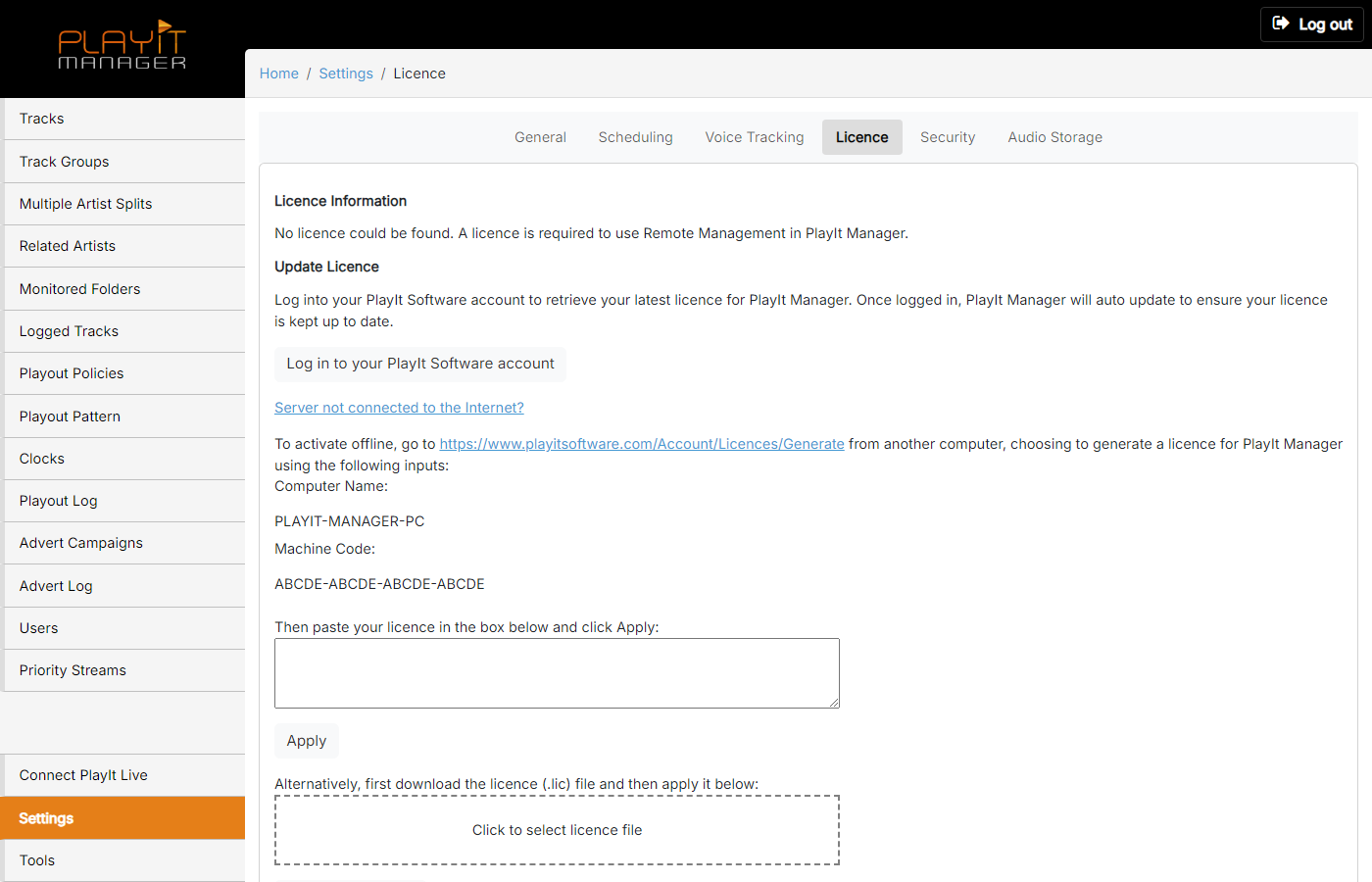
Offline activation form
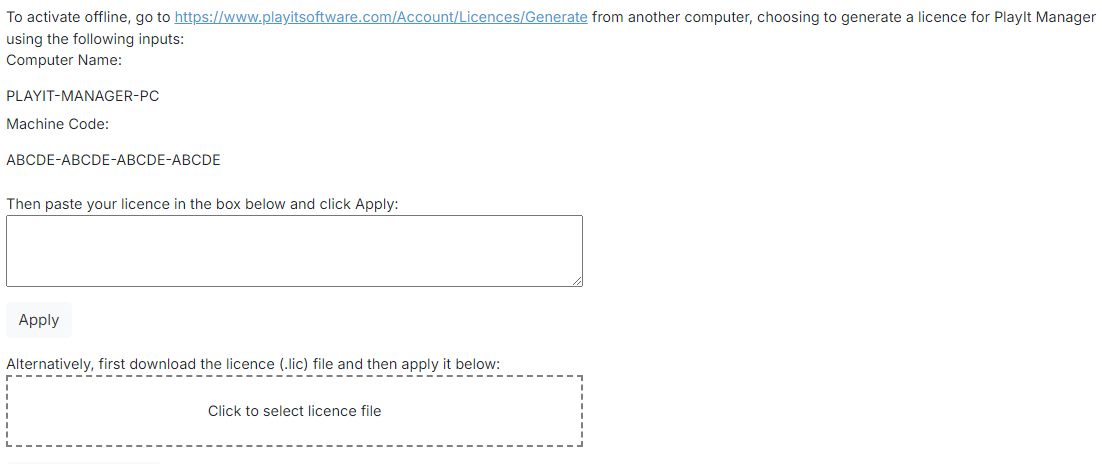
Note the Computer Name and Machine Code displayed here. You will need these to generate a licence on the PlayIt Software website.
Once you have generated a licence from the PlayIt Software website, paste the licence text in the box and click Apply. Alternatively, if you have downloaded the licence file from the website, click the box to select the licence file and then click the Apply Licence File button.
The page will be updated with the licence information populated.
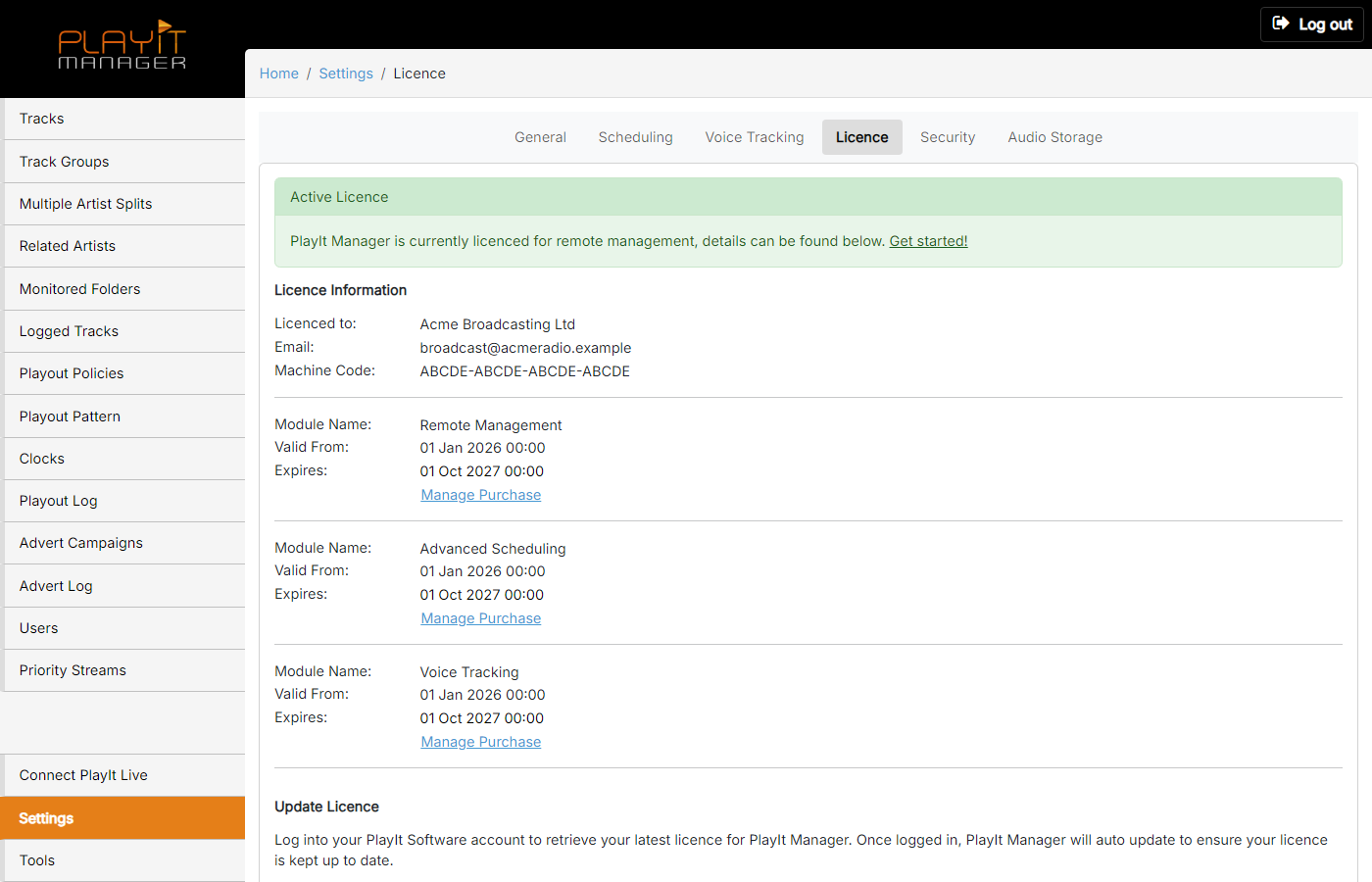
Active Licence

A green confirmation banner appears once your licence has been applied successfully.
Licence Information
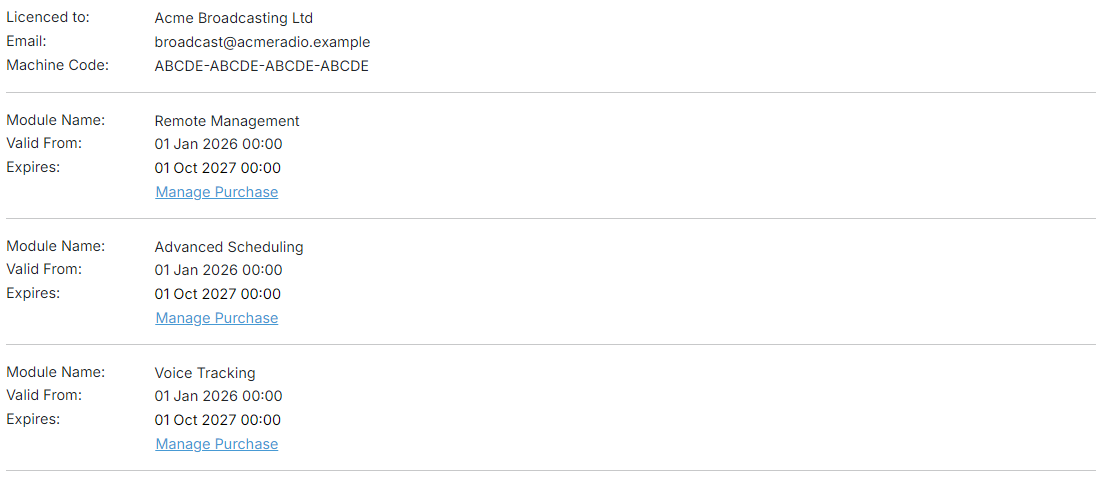
The Licence Information section is populated with the account name, email, and machine code tied to your subscription.
You are now ready to use PlayIt Manager. Click Get started! to start.
If your server is connected to the internet, see Activating Online for the simpler activation flow.