Remote Voice Tracking
As a remote voice tracker you can record voice tracks on a remote computer and send them to PlayIt Live or PlayIt Manager. You also edit segues and add additional tracks to the playout log if you wish.
Firstly, to start a remote voice tracking session you will require a Server URL, Username and Password. If you do not have these please request them from your radio station administrator.
Starting a remote session
To get started, click the Start Remote Session... button.

Click Start Remote Session to begin.
Enter the Server, Username and Password and click Connect.
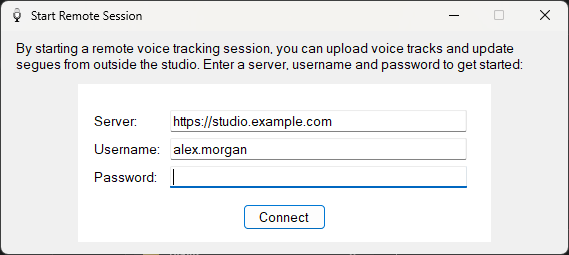
Enter the Server, Username and Password and click Connect.
Server

The URL of the PlayIt Live or PlayIt Manager server hosting the voice tracking session.
Username

Your username on the server.
Password

Your password on the server.
Connect button

Click Connect to authenticate against the server and continue to the slot picker.
Selecting a slot
You will be prompted to select a slot you are allowed to voice track into. Select a slot and click Select.
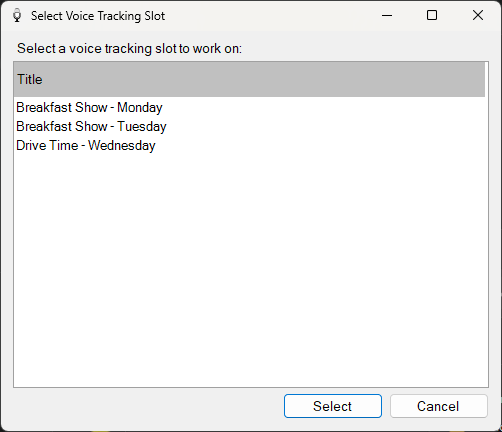
Select a slot and click Select.
Slot list
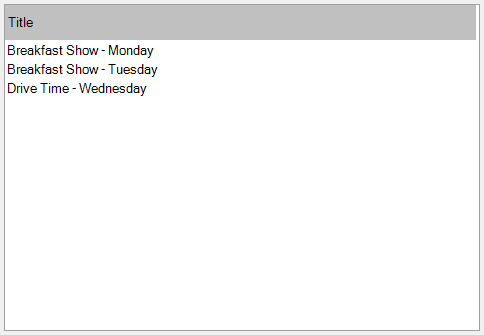
The list of shows available to voice track on the server. Select a show and click Select, or double-click a row to start.
Select button

Confirm the selected slot and begin the remote voice tracking session.
Cancel button

Disconnect and close the window without starting a session.
PlayIt VoiceTrack will download the voice tracking details including the start and end of the audio track files. The start of the track will be up until 10 seconds + Audition Time after the intro point of the track, and the end of the track will be from the last 10 seconds + Audition Time before the cue out point of the track.
In a remote session
An additional panel will be added to PlayIt VoiceTrack when in a remote session:
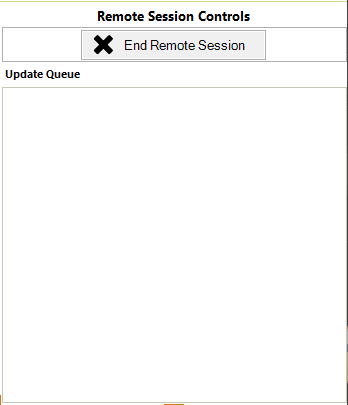
The remote session panel showing the Update Queue and End Remote Session button.
This section shows you the queue of commands that are sent back to the server when making changes. You can also log out by clicking the End Remote Session button.
It is important to end the session when you have finished to allow other users to connect if necessary.
PlayIt Live will show the start and end of the tracks with a gap for the voice track placeholder:
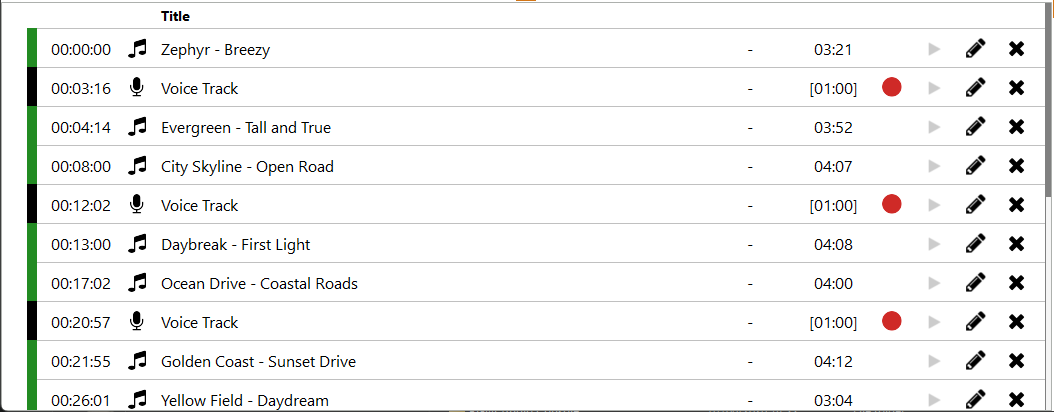
The playlist shows the start and end of each track with a gap for the voice track placeholder.
Double-click on the voice track placeholder waveform box to launch the segue editor. You can also click the Record button on the playlist:

Click the Record button on the voice track placeholder row to open the segue editor.
The segue editor works exactly the same as if you were recording a local voice tracked show. You can refer to the Your First Voice Tracked Show section for more detail.
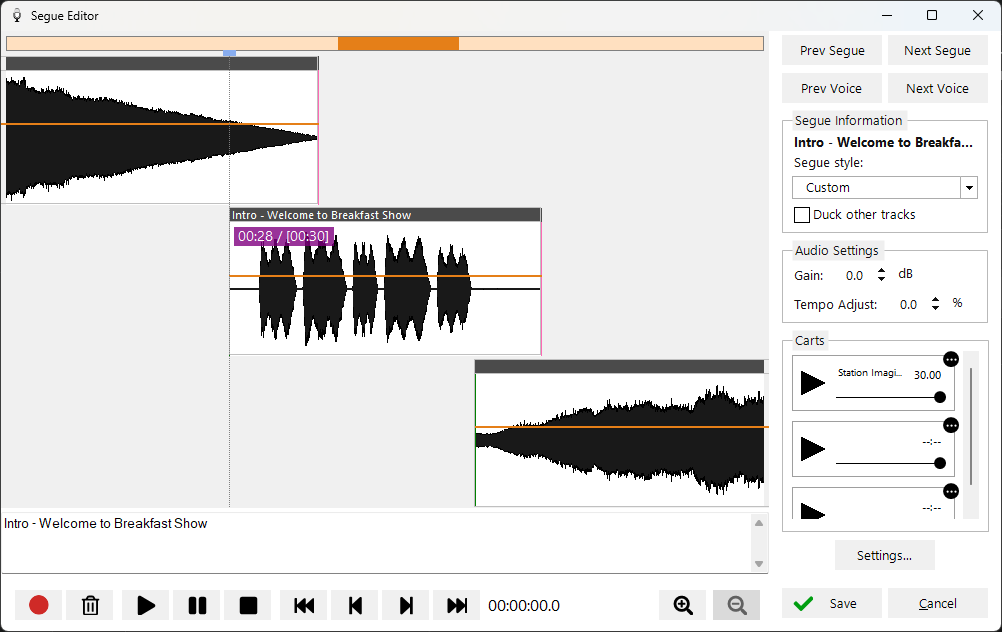
The segue editor works the same in a remote session as it does locally.
Once you have recorded your voice track, click the Save button to close the window, or click Next Voice to move to the next voice track to record the next one.
When you record the voice track, the voice track is updated in the list and uploaded to the server.
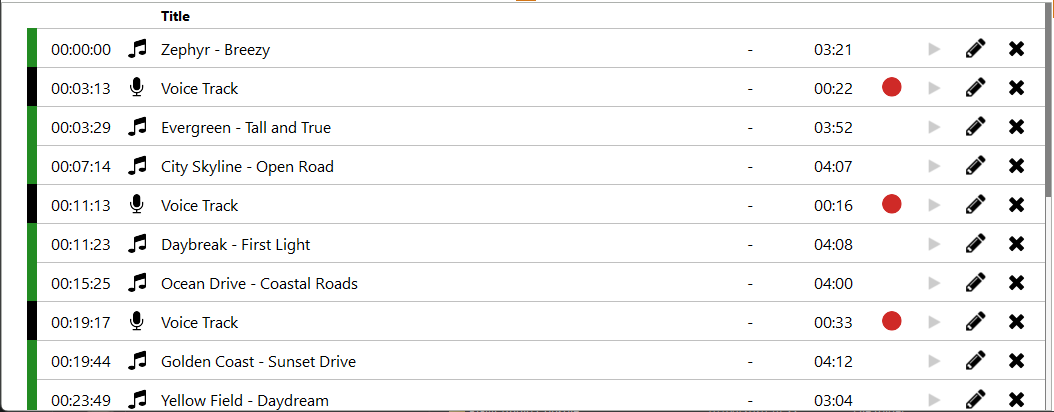
The recorded voice track appears in the playlist and is uploaded to the server.
Your segue changes are also applied. These changes are shown in the Update Queue section:
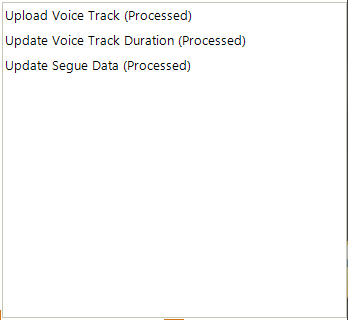
The Update Queue shows changes being sent back to the server.
Your changes are immediately applied to PlayIt Live or PlayIt Manager. There is nothing left to do except to record the rest of your voice tracks. Remember to End Remote Session when you have finished.
Editing the playlist or adding other tracks
You can also drag tracks up and down the playlist to reorder, or you can drag tracks from the track list into the playlist. The track list shown is the track list that exists on the server. When you add a track from the track list, the start and end audio is downloaded from the server.
It is not possible to drop tracks that are on your own computer. You will need to add your own tracks to the server first.
A note on licensing
Remote voice trackers do not require a Voice Tracking module licence in order to voice track remotely. This is required on PlayIt Live in order to broadcast voice tracks.
Demonstration video
Please refer to this video for a demonstration of remote voice tracking: