Mixdown window
To play your project in another audio player you need to mixdown the audio to an audio file. Open the Mixdown window from the main window by clicking the Mixdown Audio button or by selecting File → Mixdown Audio... from the menu.
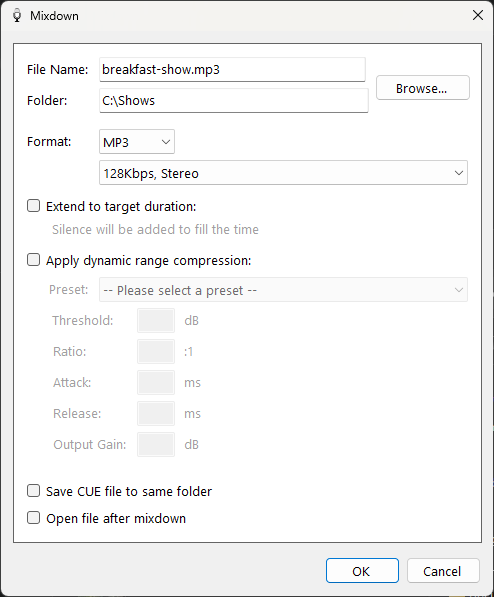
The Mixdown window.
File

The file name and folder for the audio mixdown. Click the Browse... button to navigate to a folder and choose a name interactively.
Format options

Select the format of the audio mixdown. Choose from MP3 or WAV format. For MP3 you can choose the bit rate and mono/stereo option. Lower bit rates take up less disk space but have a lower audio quality.
Extend to target duration / Trim or fade to target duration
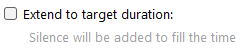
Tick this box if you want the mixdown file to match the target duration. If your project is short it will be extended to the target duration with silence. If it is too long it will be shortened and faded at the end to the time specified.
Dynamic range compression settings
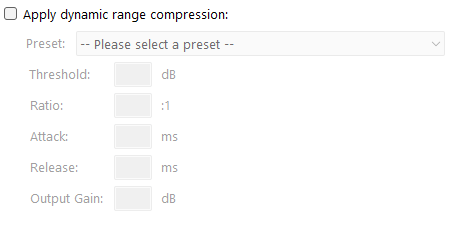
Apply dynamic range compression to the mixdown to reduce the difference between the loudest and quietest sounds. Choose a preset from the list or pick Custom to set your own threshold, ratio, attack, release and output gain values.
Save CUE file to same folder

A cue file (or cue sheet) is a metadata file that describes how the tracks in the mixdown file are positioned. The file can be used by other playout systems, such as PlayIt Live, to display and report the currently playing song within the larger audio file.
Open file after mixdown

Once the mixdown process has finished, the audio file will open in your default audio player.
OK button

Start the mixdown process. A progress window will be shown.
Cancel button

Close the Mixdown window without starting the mixdown.