Generate Playlist
The Generate Playlist feature builds a playlist automatically based on a template and applies it to your project. This means you do not need to manually select tracks for your show project. To generate a playlist you will need to populate the database with tracks via Manage > Tracks.
Open the window from the main window by selecting File > Generate Playlist... from the menu.
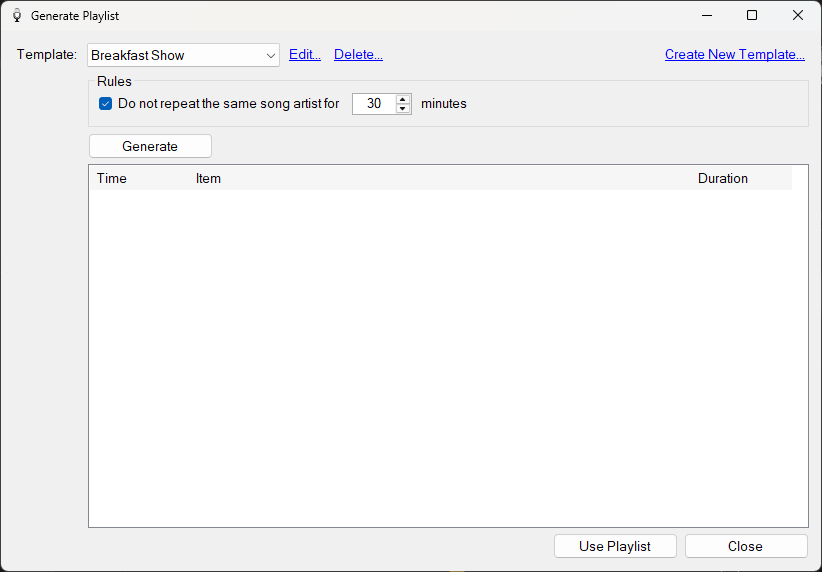
The Generate Playlist window before any items have been generated.
Template

The template used to generate your playlist. Click the Edit... link to edit the selected template or the Delete... link to delete it. Click Create New Template... to create a blank template.
Clicking the Edit or Create New links opens the Playlist Template Builder.
On first run, an example template is provided as a starting point.
Rules

A simple rule is provided to ensure the same artist is not played too close to another song by the same artist. A 'song' is a track with a Type field of 'Song'.
Generate button
Click Generate to generate a playlist from the selected template. A progress bar is shown while the generation takes place.
Use Playlist button
If you are happy with the generated items, click Use Playlist. If your project already has items you will be prompted to replace the existing items or add the generated items to the end.
Close button
Close the window without adding any items to your project.
Generated items
After the generation has finished, the list is populated with the generated items.
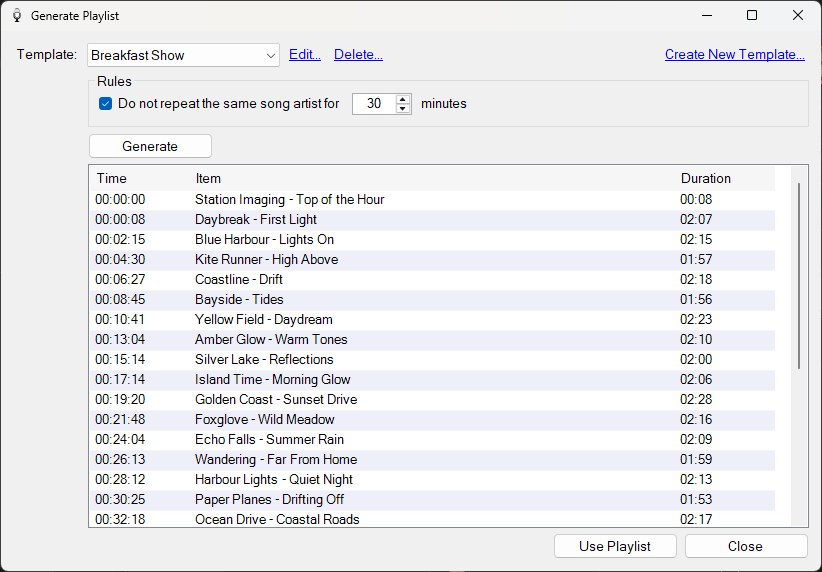
The Generate Playlist window after clicking Generate.
Generated Items
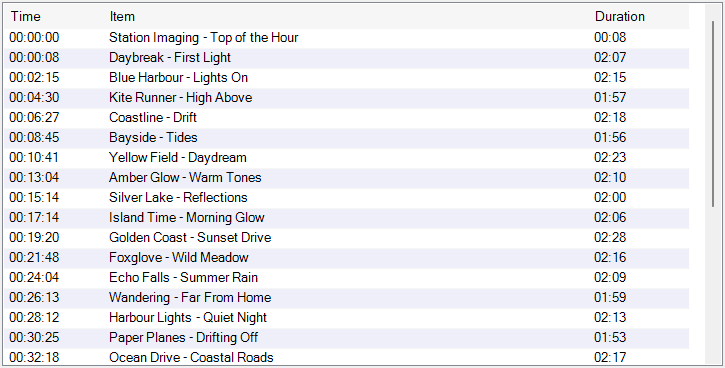
The list of items generated from the template, in the order they will appear in the playlist. Each row shows the start time, item description and duration.