Manage Track Groups Window
The Manage Track Groups window lists all the track groups in the system. Open it from the Manage menu by clicking Track Groups....
The Add New and Delete buttons are only available when PlayIt VoiceTrack is using its own local database. When PlayIt VoiceTrack is connected to PlayIt Live as a data source, track groups are managed in PlayIt Live and these buttons are hidden.
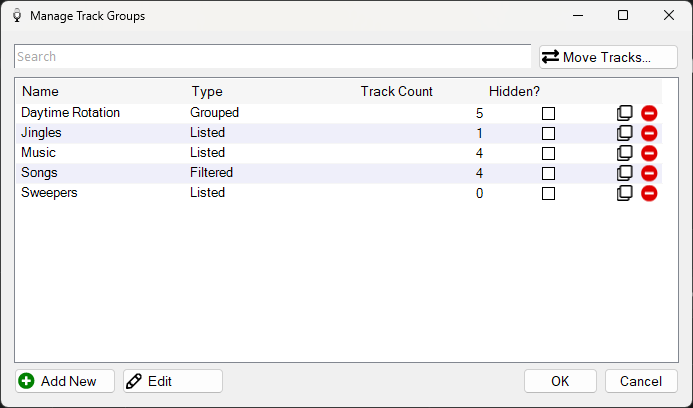
The Manage Track Groups window showing a list of track groups with their types and track counts.
Search Box

Use the search box to find a track group by name.
Track Group List

Displays the Name, Type, Track Count, and Hidden? state of each track group. Double-click an entry in the list to begin editing. Depending on the type, this will open the Edit Listed Track Group, Edit Filtered Track Group, or Edit Grouped Track Group window.
Each row also includes:
- Hidden? checkbox. Tick it to hide the track group from the main interface track group selector.
- Delete icon. Click it to delete the track group from the system. This icon is not shown when using PlayIt Live as a data source.
Move Tracks

Click Move Tracks... to open the Move Tracks window, where you can move tracks between two listed track groups.
Add New

Click Add New to begin adding a new track group. This opens the Choose Track Group Type window. This button is not shown when using PlayIt Live as a data source.
Edit

Click Edit to begin editing the selected track group. Depending on the type, this will open the Edit Listed Track Group, Edit Filtered Track Group, or Edit Grouped Track Group window.
OK

Click OK to save changes and close the window.
Cancel

Click Cancel to discard changes and close the window.