Edit Track Window
The Edit Track window is used to change the information stored on each track imported into PlayIt VoiceTrack. Open it by selecting a track in the Manage Tracks window and clicking Edit, or by double-clicking a track.
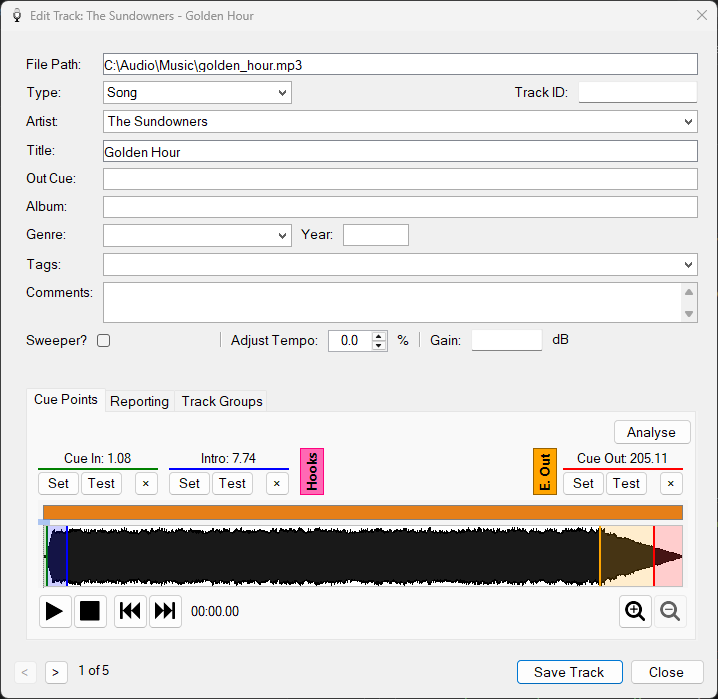
The Edit Track window showing track properties and cue points.
File Path

The location of the audio file on the file system. This cannot be changed once the track has been added. Click the folder button to the right of the path to open the folder containing the audio file in Windows Explorer, with the file selected. If the file no longer exists on disk, a message is shown telling you that it could not be found.
Type

The track type, which can be Song, Station ID, Promo, Commercial, News, Bed or Station ID + Bed. When set to -- Inferred --, the type is determined automatically from the track's tags, artist, title and duration. See Inferred Type rules for details.
Artist

The performer of the track. Artist information will auto-complete if similar information exists on other tracks, helping to keep your data consistent.
Title

The title of the track.
Out Cue

The last spoken words of the track, used by presenters to talk over the ending.
Album

The album the track appears on.
Genre

The genre of the track. Genre information will auto-complete from existing tracks.
Year

The release year of the track as a four-digit year.
Tags

Semicolon-separated tags for categorising the track. Tags can be used in track group filters and to influence Inferred Type rules. Tag information will auto-complete from existing tracks.
Comments

Free-text notes about the track, such as where and when it charted, or usage instructions for presenters.
Sweeper?

When enabled, marks the track as a sweeper. A sweeper is a track that can be played over the start of the intro of another song. It is typically dry (no background music) so it does not clash with the track it is playing over.
Adjust Tempo

Makes the track faster or slower by up to 10%. The pitch of the track is preserved.
Gain

Adjusts the playback volume of the track in decibels. The value can be set automatically using the Loudness Analysis feature.
Track ID

A unique identifier for the track, used for integration with external systems such as music scheduling software or playout logging.
Cue Point Controls

The cue point controls let you set the following points for the track:
- Cue In: The position in seconds where a player should start playing. This is typically where the silence ends at the start of the track and the audible audio begins.
- Intro: The position in seconds where the vocals start on the track. This is counted down by the players on the main window.
- Hook Start / Hook End: Define the start and end of a hook, a short highlight segment of the song. Click the Hooks section to expand these cue points. Hooks can be set here, but they are only used by PlayIt Live's hook sequences and are currently ignored by PlayIt VoiceTrack.
- Early Out: The position where the track is considered to be almost finished. Click the E. Out section to expand this cue point. Early Out can be used in two scenarios:
- For songs, the point marks where a sweeper can be placed as the track is finishing, providing a smoother transition.
- For tracks marked as Sweeper, the point marks where the next track can start, allowing the end of the sweeper to play over the intro of the next song.
- Cue Out: The position in seconds where the track is considered to have finished.
Each cue point has its own Set, Test and × buttons:
- Set: While listening to the track, click Set to capture the current playback position as the cue point value.
- Test: Click Test to play the track from the cue point position.
- ×: Click to reset the cue point to its default position.
Cue points can also be adjusted using the keyboard or mouse. Click on the cue point value of interest, then use the following:
| Action | Result |
|---|---|
| Left Arrow / Right Arrow | Adjust the cue point by 0.01 seconds. |
| Shift+Left Arrow / Shift+Right Arrow | Adjust the cue point by 0.1 seconds. |
| Click and drag over the cue point value | Adjust the cue point with the mouse. |
| Enter or double-click the cue point value | Test playback from the cue point. |
| Spacebar | Stop playback. |
Analyse Button

Click Analyse to automatically detect the Cue In and Cue Out points based on the silence at the start and end of the track. The sensitivity of the analysis can be configured from Settings > Audio Analysis.
Waveform

The waveform shows the volume of the audio track over time. Cue point markers are overlaid on the waveform:
| Cue point | Colour |
|---|---|
| Cue In | Grey |
| Intro | Blue |
| Hook | Hot pink |
| Early Out | Orange |
| Cue Out | Red |
Double-click on the waveform to start playing at a different position in the track. Use the Play and Stop buttons to control playback, and the Go to start and Go to end buttons to jump to the start or end of the track. Use the Zoom buttons to zoom in and out of the waveform if you need to set a more precise cue point. You can also zoom with the mouse wheel while hovering over the waveform.
Track Navigator

Use the < and > buttons to navigate between the previous and next tracks in the Manage Tracks list without closing the window. Any changes to the current track are saved automatically before moving to the next one. The current position and total track count are shown alongside.
Save Track Button

Click Save Track to confirm changes to the current track and close the window.
Close Button

Click Close to discard any unsaved changes and close the window.