Edit Filtered Track Group Window
The Edit Filtered Track Group window allows you to create dynamic track groups using filters. For example, you can filter tracks by year to create a "1980s" track group that includes all tracks with a year between 1980 and 1990.
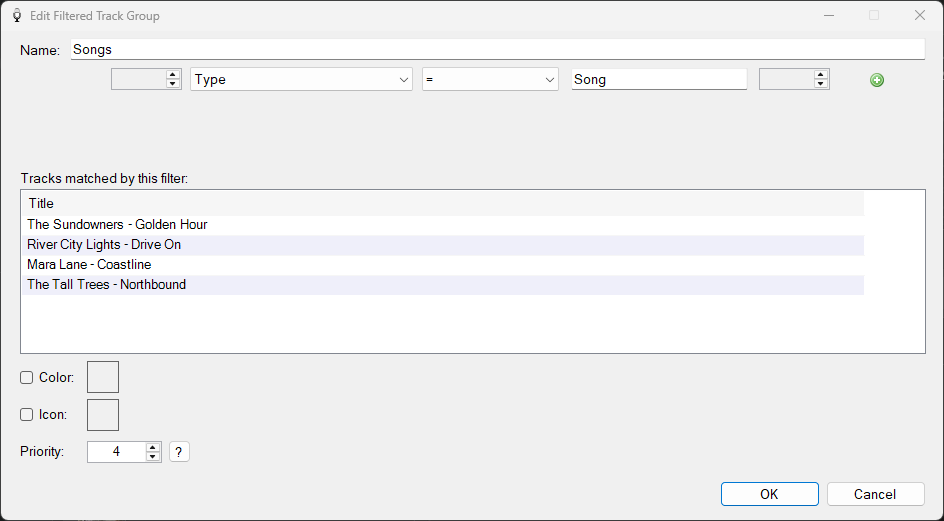
The Edit Filtered Track Group window showing filter conditions and the matching tracks.
Track Group Name

The name of the track group.
Filter Builder

The filter builder lets you define one or more conditions that tracks must match to be included in the group.
Each filter row contains:
- Field Selector -- choose the track property to filter on, such as Artist, Title, Genre, Year, or Type.
- Operation Selector -- choose how the field value is compared, such as Equals, Contains, Starts With, Ends With, or Is Empty.
- Filter Value -- enter the value to compare against.
When you have more than one filter row:
- And / Or Selector -- choose how to combine the conditions. And requires tracks to match both conditions. Or requires tracks to match either condition.
- Open / Close Parentheses -- use parentheses to group conditions and control the order of evaluation. Use the up and down arrows to add or remove parentheses.
Use the Add button to add a new filter condition and the Remove button to delete the selected condition.
Open Parentheses

Use parentheses to form complex filters. Use the up and down arrows to increase and decrease the number of opening parentheses.
Close Parentheses

Use parentheses to form complex filters. Use the up and down arrows to increase and decrease the number of closing parentheses.
Add Filter

Click the Add button to add a new filter condition. Once you have more than one filter row, a Remove button (a minus icon) appears next to each row that you can click to remove that filter condition.
Color, Icon and Priority

See the Color, Icon and Priority settings on the Edit Listed Track Group page.
OK
Click OK to confirm changes to the track group.
Cancel
Click Cancel to discard changes to the track group.