Main Window
The main window is shown when PlayIt VoiceTrack starts.
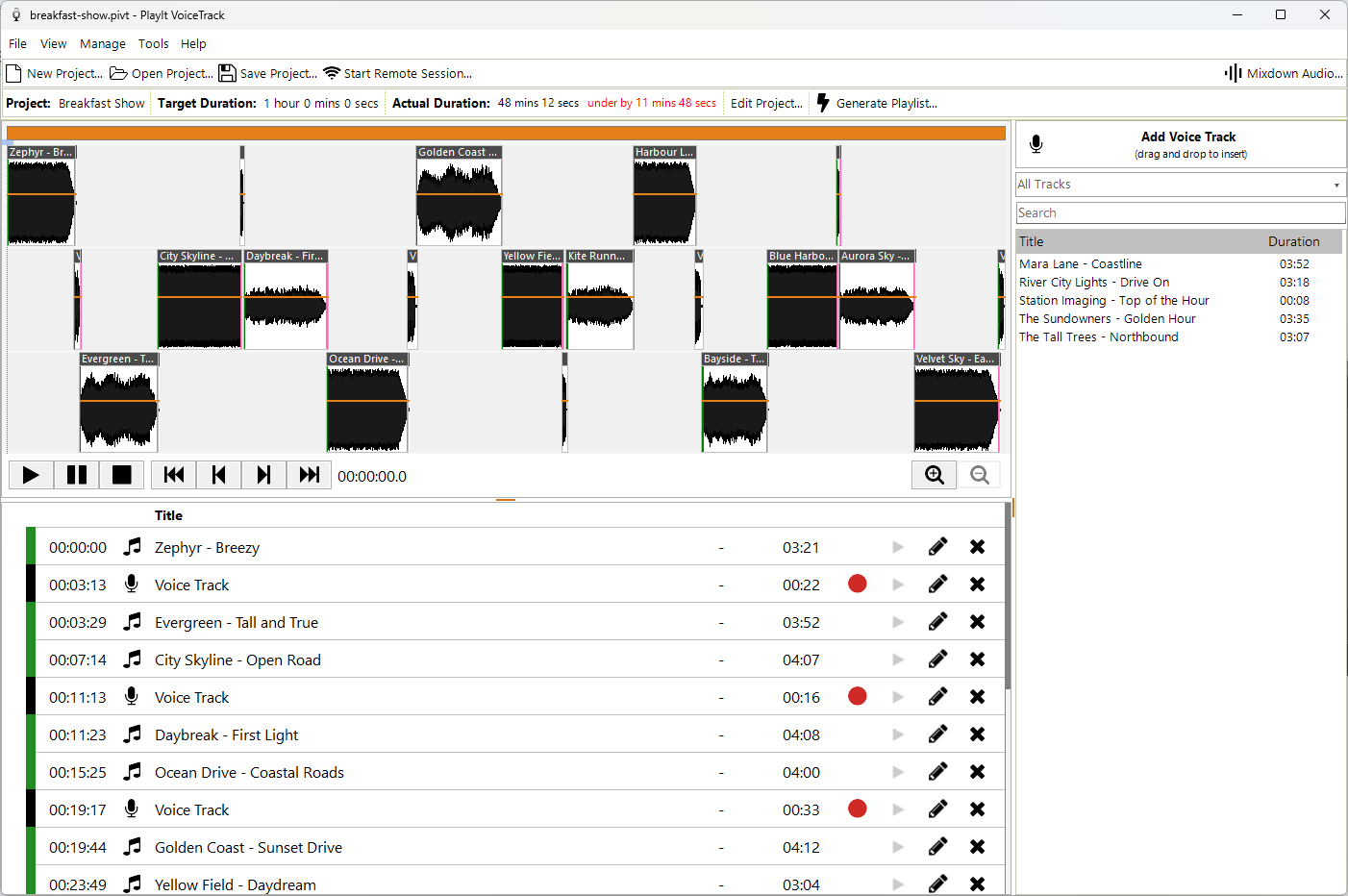
The PlayIt VoiceTrack main window with a populated project.
Menu

The menu is used to perform common actions for PlayIt VoiceTrack.
File:
- New Project...: Start a new project from scratch.
- Open Project...: Open an existing project. PlayIt VoiceTrack projects have the extension
*.pivt. - Start Remote Session...: Start a remote voice tracking session. See Remote Voice Tracking.
- Save Project: Save the current project for opening later.
- Save Project As...: Save the current project under a different file.
- Edit Project...: Edit information about the current project.
- Generate Playlist...: Generate a playlist so you don't have to create one manually.
- Mixdown Audio...: Mixdown your project to an audio file.
- Export Playlist Text File...: Export the current project playlist to a text file. This can then be used for reporting.
- Settings...: Change the settings associated with PlayIt VoiceTrack.
- Exit: Close PlayIt VoiceTrack.
View:
- Show Waveforms / Hide Waveforms: Toggle the visibility of the waveform multi track view. This item reads Hide Waveforms when the waveforms are shown, and Show Waveforms when they are hidden.
Manage:
- Select Data Source...: Select the data source for your tracks. Manage tracks directly in PlayIt VoiceTrack or use tracks from PlayIt Live.
- Tracks...: Manage the tracks available in PlayIt VoiceTrack.
- Track Groups...: Manage track groups used to categorize and filter your tracks.
Tools:
- Loudness Analysis...: Analyze the loudness of the tracks in your library.
Help:
- Online Documentation...: Open this documentation in your web browser.
- License Information...: View your license information to update or refresh your license.
- About PlayIt VoiceTrack...: Show the About window with version information and check for updates.
Project options

These options are always shown so you can quickly access them:
- New Project...: Start a new project from scratch.
- Open Project...: Open an existing project. PlayIt VoiceTrack projects have the extension
*.pivt. - Save Project...: Save the current project for opening later.
- Start Remote Session...: Start a remote voice tracking session. See Remote Voice Tracking.
Project information

This section shows information about your project. Here you can see the name of your project and the target duration. The actual duration of the tracks in the project is also calculated, along with how over or under the actual duration is compared to the target duration. Click the Edit Project... button to edit this information.
Multi Track View
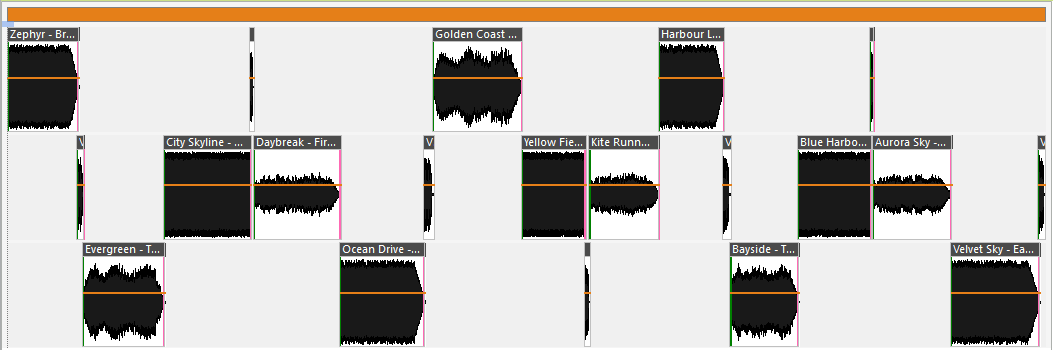
The multi track view shows waveforms of the tracks and how they are layered in your project. To edit the segue or transition between the tracks, double-click on the track you wish to modify. Use the mouse wheel to zoom in and out of the view. When zoomed in, you can use the mouse to drag the zoom bar to pan through the time in the project.
The gray line indicates the current position marker in the project.
Playback controls

- Play button: start playback from the current playback position.
- Pause button: pause playback at the current playback position.
- Stop button: stop playback and reset to the previously selected position marker.
- Move to start: move the position marker to the start of the project.
- Move back a track: move the position marker to the previous track from the current position.
- Move forward a track: move the position marker to the next track from the current position.
- Move to end: move the position marker to the end of the project.
- Current playback position: indicates how long has elapsed in the project.
Zoom controls

As an alternative to using the mouse wheel to zoom the multi track view, you can use the zoom buttons to zoom in and out.
Playlist
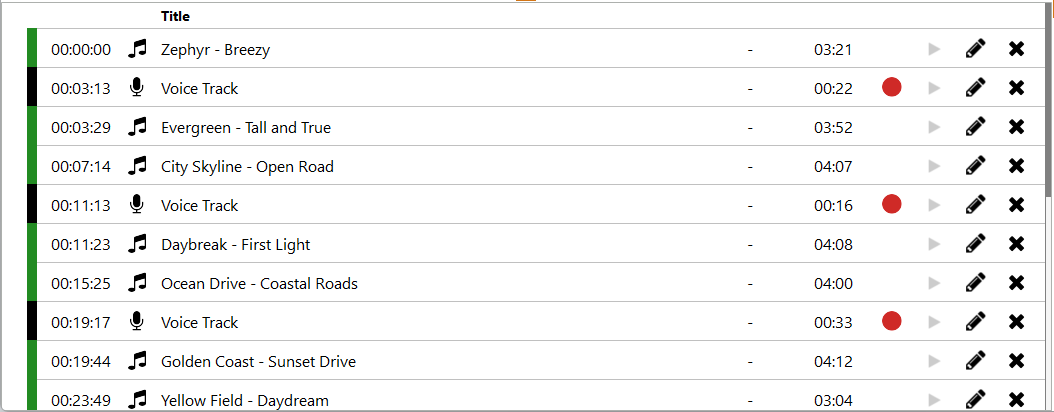
The playlist shows all the tracks that have been added to the project. From left to right, the columns are:
- Marker color: A color indication for the track. By default, tracks are shown in green, and voice tracks in black. This color can be customized by adding tracks to a track group and configuring the track group with a color.
- Play time: The time into the project when the track will start.
- Icon: Indicates whether the track is music or a voice track. This icon can be customized by adding tracks to a track group and configuring the track group with an icon.
- Title: The name of the track.
- Intro: The length of the intro in
minutes:seconds. Displays-if the intro point is not set. - Duration: The length of the track in
minutes:seconds. - Record button: Shown only for voice tracks. Click this button to launch the segue editor to get ready for recording.
- Play button: Plays the track. The current progress is shown in a highlighting circle around the play button.
- Edit button: Launches the segue editor to edit the segue between the previous and next track.
- Remove button: Removes the track from the playlist.
Drag and drop tracks from the file system, track list, or a voice track to insert them into the playlist. Hovering over the left margin reveals a handle for reordering, or you can drag anywhere on the row. Moving the mouse between rows lets you insert a voice track between two tracks.
On voice tracks that have yet to be recorded, you can set a placeholder duration and description by clicking the duration in square brackets.
Generate Playlist
Instead of manually dragging and dropping tracks onto the playlist, you can use the Generate Playlist feature to create a playlist for you from a template.
Add Voice Track button

Use this button to insert a voice track at the end of the playlist. You can also drag and drop the button onto the playlist to insert a voice track anywhere in the playlist.
Track Group selector

Select a track group from the list to filter the track list to tracks in the track group.
Track search

Use the search box to filter the track list by artist and title.
Track list
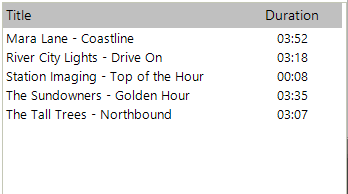
The track list shows the tracks available in PlayIt VoiceTrack. Manage the tracks or select the data source to use tracks from PlayIt Live, then drag tracks to the playlist to add them to the project.
Demo mode
If you have not purchased the PlayIt Software Voice Tracking module required for PlayIt VoiceTrack, a demo notice will be shown above the main window.

The demo notice that appears when the Voice Tracking module has not been purchased.
To purchase the module, click the link. If you have already purchased the module and this notice is still shown, click View License Information to update or refresh your license.