Manage Tracks Window
The Manage Tracks window shows all tracks in your PlayIt VoiceTrack library. Each track links to an audio file at its original location; the audio itself is not copied. Tracks in the library can be used from the Track List on the right-hand side of the main window.
Open the Manage Tracks window from the Manage menu by clicking Tracks....
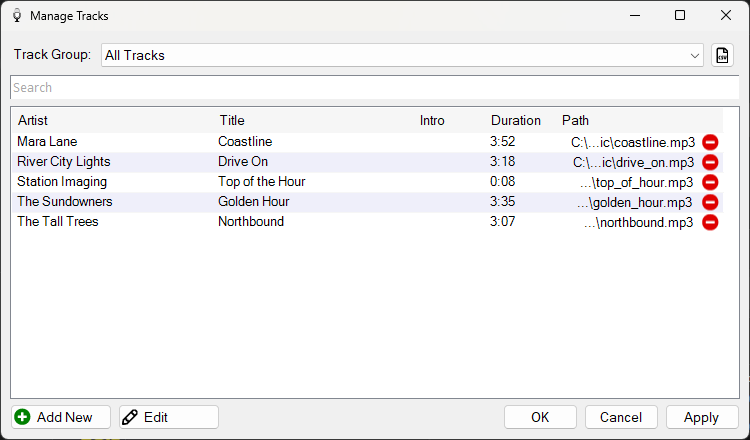
The Manage Tracks window showing the track library.
Track Group Selector

Use the Track Group dropdown to filter the track list by a specific track group. The track list will show only tracks that exist in the selected group. Track groups can be managed from Manage > Track Groups.
Export to CSV

Click this button to export the current track list to a CSV file. Any active search filter or track group filter is included in the export. This is useful for creating reports or sharing track information with external systems.
Track Search Box

Use the search box to filter the track list. When text is entered, the list will show only tracks whose artist, title or other properties contain the entered text. Click the × in the search box to clear the search.
Track List

The track list shows the Artist, Title, Intro, Duration and Path of all the tracks in the database. Double-click a track to open the Edit Track window for that track. Changes are not saved until you click Apply or OK.
To delete a track, click the delete icon shown on the row. To delete several tracks at once, select them with Ctrl+A (or hold Ctrl / Shift while clicking) and press Delete. A confirmation prompt will appear before any tracks are removed.
The delete icon is hidden when PlayIt Live is selected as the data source on the Select Data Source window, because tracks managed by PlayIt Live cannot be edited from within PlayIt VoiceTrack.
Add New Button

Click Add New to open the Add New Tracks Wizard, which guides you through adding new tracks to your library from files or folders.
Edit Button
Click Edit to open the Edit Track window for the selected track. You can also select multiple tracks using Ctrl or Shift and click Edit to bulk-edit their properties.
OK Button

Save any pending changes and close the Manage Tracks window.
Cancel Button

Discard any pending changes and close the Manage Tracks window.
Apply Button

Save any pending changes without closing the Manage Tracks window.