Playlist Template Builder
As the name suggests, the Playlist Template Builder is used to build playlist templates. A template is comprised of multiple sections in order. A section can either be a static set of items, or a set of items that fills for a period of time. A section that fills will try its best to fit the items to the time specified.
For each item, PlayIt VoiceTrack will select a track that corresponds to the type of the item. It can select a track by track type (e.g. Song), a track group (as defined in Manage > Track Groups), or a specific track (as defined in Manage > Tracks). You can also select Voice Track and specify a time to insert a voice track placeholder for later recording.
Open the Playlist Template Builder by clicking Edit or Create New Template in the Generate Playlist window.
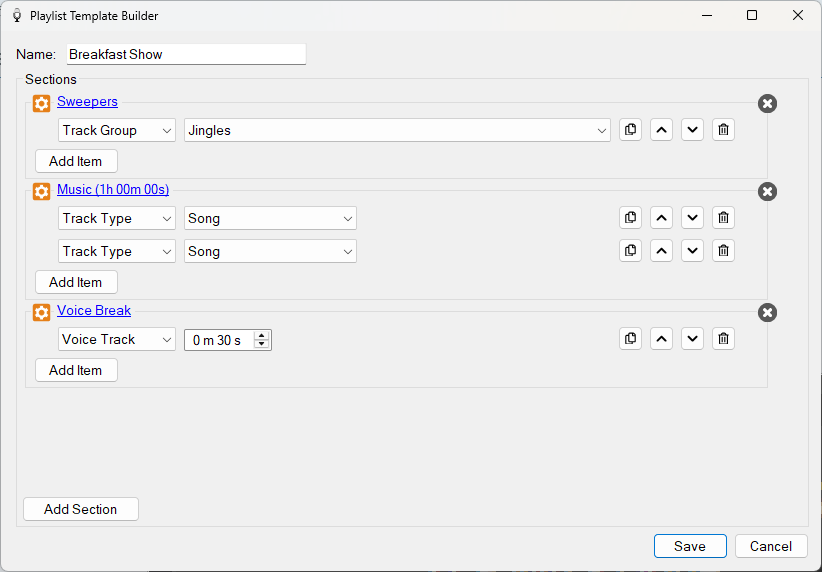
The Playlist Template Builder window editing a template.
Template Name

The name of the template, as displayed in the Template dropdown in the Generate Playlist window.
Template Section

A template section specifies a list of items to generate. Click the cog icon to edit the section in the Edit Section window. Here you can change the name of the section, or turn it into a 'Fill' section. If enabled, the items in the section will be repeated until the specified duration is filled. PlayIt VoiceTrack will try its best to fit the section to the selected duration.
Click the cross icon to delete the section.
Template Item

An item in a section of the template. Possible types of item are:
- Track Group: Select a track group as defined in Manage > Track Groups. PlayIt VoiceTrack will select a track from that track group and will ensure that all tracks in that track group are selected before ever selecting that track again.
- Track Type: Select a track type as defined on the track Type field.
- Track: Select a specific track as defined in Manage > Tracks.
- Voice Track: Select a voice track with a specified duration. PlayIt VoiceTrack will generate a voice track placeholder for later recording.
Use the row buttons to clone the selected item, move it up, move it down, or delete it.
Add Section button
Add another section to the end of the template.
Save

Save the template.
Cancel

Discard any changes to the template.
Editing a section
Click the cog icon on a section to open the Edit Section window. Here you can rename the section, or check the box to turn it into a 'Fill' section and choose how long it should fill for.
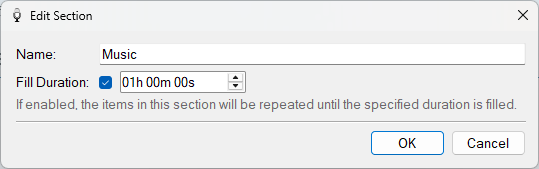
The Edit Section window, where a section is renamed or set to fill a duration.