Main Window
The main window is the main control of PlayIt Recorder. It shows the active recordings, completed recordings and allows the ability to start Quick Recordings.
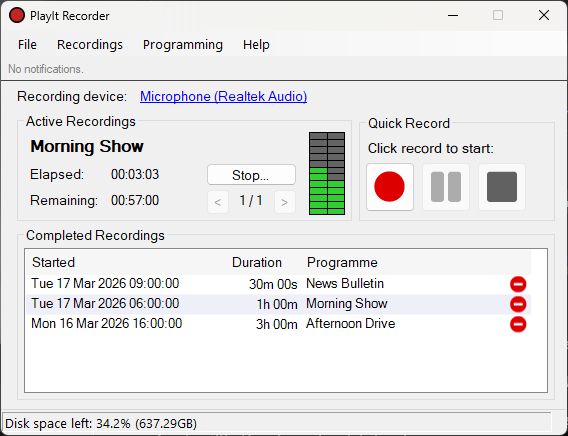
The main PlayIt Recorder window.
Menu

The menu bar provides access to all PlayIt Recorder functions.
- File:
- Settings...: Configure PlayIt Recorder.
- Exit...: Exit PlayIt Recorder. Any scheduled recordings will stop and future recordings will not start.
- Recordings:
- Start Scheduler...: Starts up the scheduler and any scheduled recordings will start.
- Stop Scheduler...: Stops the scheduler and any scheduled recordings will stop.
- Explore Recordings...: Explore to the recordings folder to access any completed recordings.
- Programming:
- Programs...: Manage programs. Programs indicate the name of the recording.
- Schedule...: Manage the schedule, this defines when programs will be recorded.
- Help:
- Online Documentation...: Open the PlayIt Recorder documentation in your web browser.
- About PlayIt Recorder...: Show version information and check for updates.
Notification Bar

Displays important notices, for example if a recording failed to start.
Recording Device

The currently selected recording device. Click the link to open Settings to change the device.
Program Information
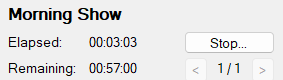
Displays information about the currently selected active recording, with the name as a heading and the elapsed and remaining time below.
Stop Button

Stops the currently selected active recording early.
Active Recording Selector

Use the arrows to select between currently active recordings. If there are multiple programs scheduled at the same time, or you have entered the bleed time setting then multiple active recordings can occur.
Completed Recordings
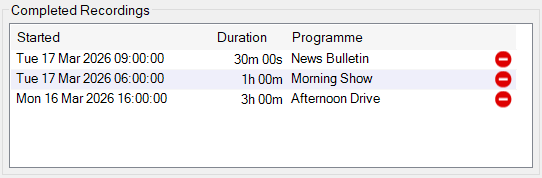
Displays all completed recordings. Use the delete button to remove a recording. This will also delete the underlying recording file.
Disk Space Status

Displays the remaining disk space percentage and amount for the drive of the recording folder location.
Quick Record
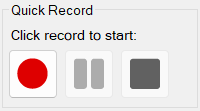
Click the record button to start a quick recording. This will show the Start Quick Recording window allowing you to enter a name for the recording. A default name will be shown so you can just press Enter or click OK to start the recording. You can enter a different name if you need to. You can also select the Stop the recording after check box to select a time after which the recording will stop.
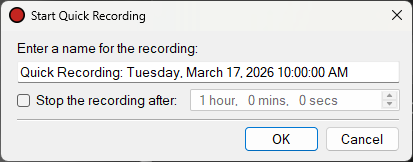
When the recording is active, the controls will change:
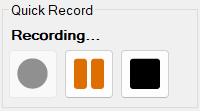
Press the pause button to temporarily halt the recording. Press the stop button to end the recording.
Recording Levels

The recording levels show the volume of the recording. This is used to monitor the recording to ensure the audio is not too loud or quiet. Recordings should aim for the green area.