Activating Offline
If the computer on which you have installed PlayIt Recorder is not connected to the internet, it is possible to activate offline.
Open the Activate Offline window
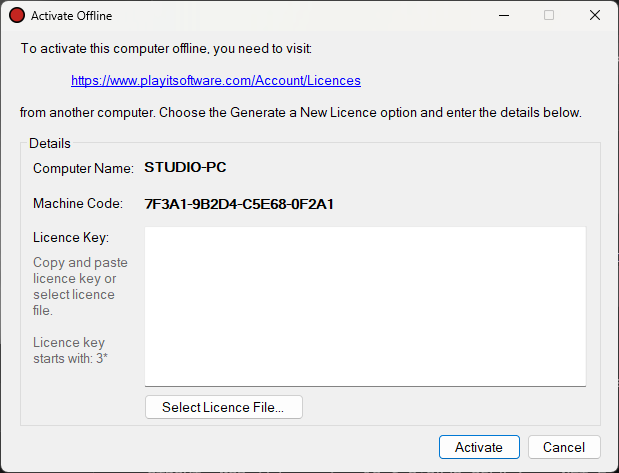
From the Get Started window, click Activate Offline...
Make a note of the Computer Name and Machine Code shown in the Activate Offline window. You will need to enter these on the PlayIt Software website to generate your license key.
Computer Name

The name of this computer. Enter this value on the website when generating your license key.
Machine Code

A code that uniquely identifies this installation. Enter this value on the website when generating your license key.
Generate a license key
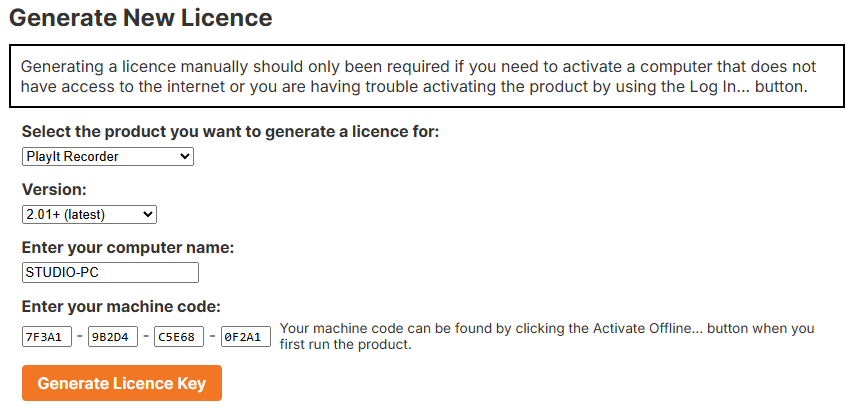
On a computer that is connected to the internet, visit the Licenses page in the My Account area of the PlayIt Software website. A license can be generated by visiting playitsoftware.com/Account/Licences/Generate. You may be prompted to log in or create an account.
In the Generate New License section, select PlayIt Recorder and ensure that v2.01+ is selected as the version. Enter the Computer Name and Machine Code you noted in the previous step and click Generate License Key.
Enter the license key
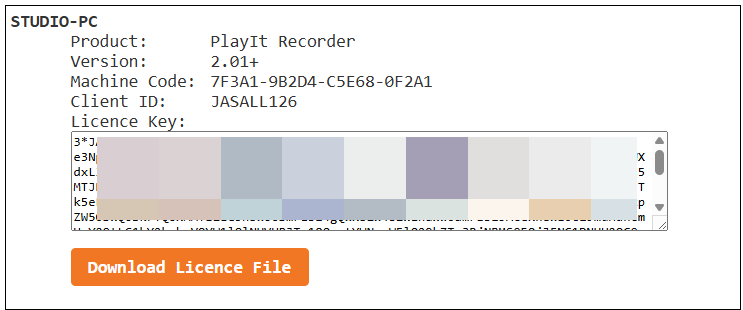
Once generated, you will be presented with a license. Make a note of the License Key and copy it into the PlayIt Recorder window. Alternatively, download the license file and select the file within PlayIt Recorder. Note that license keys start with the text 3*.
By following these steps, you can activate PlayIt Recorder offline without an internet connection.