Keyboard Settings
The Keyboard tab of the Settings window lets you bind PlayIt Cartwall actions (commands) to keyboard shortcuts. Select an item in the list to edit the binding.
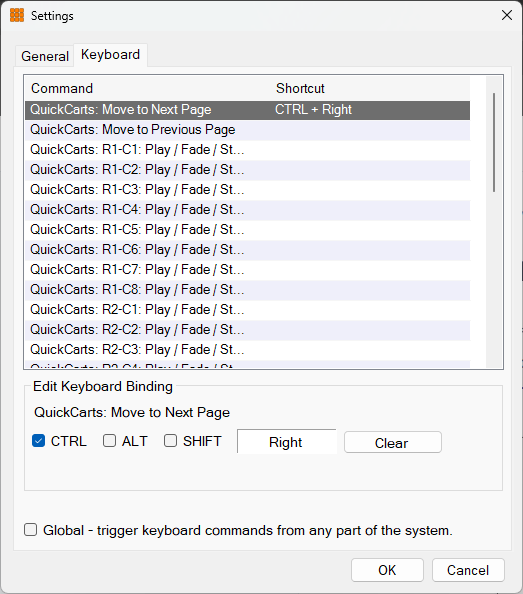
Keyboard binding list
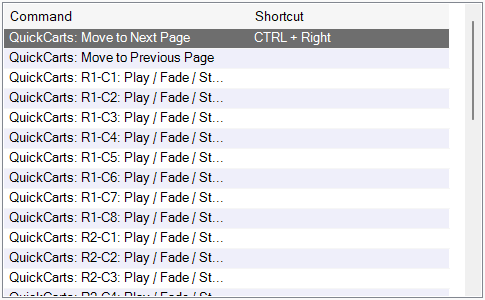
This list shows the possible commands to which you can bind a keyboard shortcut. Select a command in the list to edit the keyboard binding in the panel below.
Edit keyboard binding section
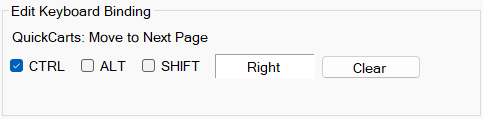
Once you have selected a binding from the list, edit it here. When no key is currently bound the text '<key>' is shown beside the modifier check boxes.
In the screenshot shown, the keyboard shortcut CTRL + Right is bound to move to the next QuickCart page. To set up this binding from scratch, tick CTRL and click the '<key>' box. You will be prompted to press a key. Press the Right arrow on your keyboard and the shortcut is configured. Click Clear to remove an existing shortcut.
Global trigger

Tick this checkbox to trigger keyboard commands even when PlayIt Cartwall is not the active window.
Choose keyboard shortcuts carefully. For example, it is not recommended to bind the Space Bar as a shortcut, as it would fire whenever you typed a space into any text box.