Settings Window
The user interface and audio devices can be configured from the Settings window. Open it from the main window by going to File > Settings.
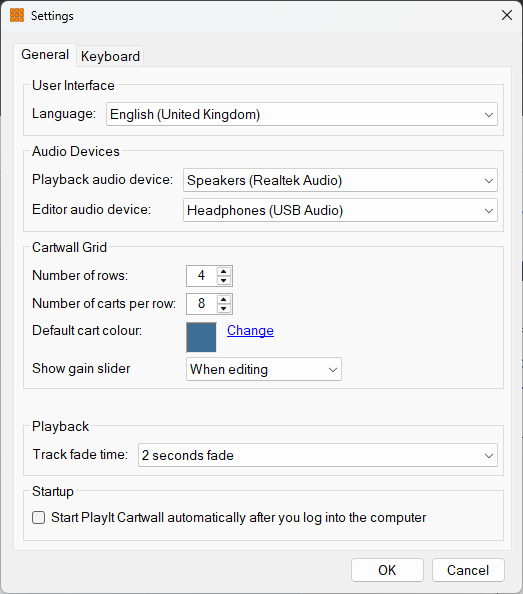
Language

The language used for the PlayIt Cartwall user interface. Pick your preferred language from the dropdown and restart PlayIt Cartwall for the change to take effect. If you switch to a language by accident and can no longer read the menus, see Changing the language back at the bottom of this page.
Playback audio device

QuickCarts can be assigned to a particular audio device (typically a sound card) on your computer. Choose the device used for playback on the main window from this dropdown.

Number of rows

The number of QuickCart rows that are displayed per page. As more QuickCart rows are displayed they will be resized to fit the available space on the screen.
Number of carts per row

The number of QuickCarts that are displayed per row (or number of columns). As more QuickCarts are displayed per row they will be resized to fit the available space on the screen.
Default cart colour

The default colour of a QuickCart. When an audio file is dropped from the file system, this colour will be shown by default. To change the colour click the Change button or click in the colour in the box.
Show gain slider

Controls when the gain slider is displayed on QuickCarts. The gain slider allows you to adjust the playback volume of individual QuickCarts, which is useful for balancing audio levels between different jingles, beds and promos that may have been recorded at different volumes. Choose from three options:
- Never: the gain slider is not displayed, providing the most streamlined interface.
- When loaded: the gain slider appears on all loaded carts at all times, providing quick access to volume adjustments during live broadcasts.
- When editing: the gain slider only appears when in Edit operation mode, keeping the interface cleaner during normal playback while still allowing level adjustments when needed.
Track fade time

Use the dropdown to select the time it will take to fade out a track when a QuickCart is clicked to fade.
Startup

Tick this box to automatically start PlayIt Cartwall after you log into the computer.
OK button

Click the OK button to confirm your changes.
Cancel button

Click the Cancel button to discard your changes.
Changing the language back
If you switch to a language by accident and can no longer read the menus, you can still find your way back to this setting. Open the menu at the top left (the File menu), choose the Settings item, then use the Language setting at the top of the Settings window. The table below gives those two menu labels in each language:
| Language | File menu | Settings item |
|---|---|---|
| Deutsch (Deutschland) | Datei | Einstellungen... |
| English (United Kingdom) | File | Settings... |
| English (United States) | File | Settings... |
| Español (España) | Archivo | Configuración... |
| Español (Latinoamérica) | Archivo | Configuración... |
| Français (France) | Fichier | Paramètres... |
| Italiano (Italia) | File | Impostazioni... |
| Nederlands (Nederland) | Bestand | Instellingen... |
| Português (Brasil) | Arquivo | Configurações... |