The Main Window
When PlayIt Cartwall first starts you will be presented with a grid of QuickCarts with the default configuration using the default sound card audio device. Here you can drag and drop audio files from the file system, e.g. Windows Explorer, to load them into a QuickCart. The audio is not copied into PlayIt Cartwall: each QuickCart links to the original file, so if the file is deleted, moved, or renamed, or its drive or network share is disconnected, the cart will no longer play. You can add pages by clicking on the page name at the top. The carts and pages you add will be saved and will be available the next time you run PlayIt Cartwall.
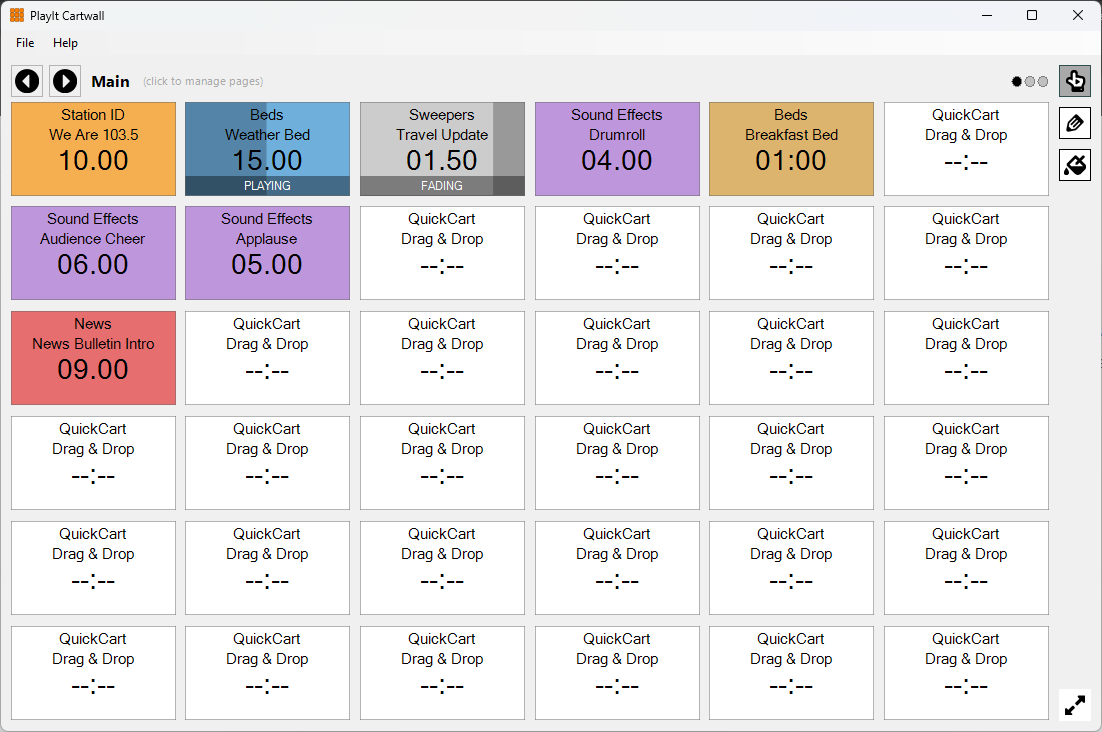
The PlayIt Cartwall main window with carts loaded on the first page.
Menu

The top menu bar provides options to set up PlayIt Cartwall.
The File menu contains:
- Settings...: Configure the user interface and audio devices.
- Exit: Close PlayIt Cartwall.
The Help menu contains:
- Online documentation...: A link to the documentation page on the PlayIt Software website.
- About PlayIt Cartwall...: View the latest version and check for updates.
Paging controls

QuickCarts can be shown on multiple pages. This is convenient if specific jingles are used on certain shows so a page can be created for later use.
Use the left and right arrows to navigate pages and click the page name to launch the QuickCart Pages window.
Row of QuickCarts

QuickCarts can be displayed in multiple rows.
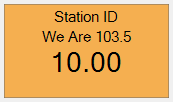
Loaded: the player appears in the default color displaying the artist and the title of the track with the remaining time below.
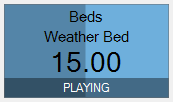
Playing: in Playback operation mode, to start the player, simply click anywhere in the box. When playing, the progress is shown as the background and the status PLAYING will be shown. If the cart is configured to Loop, when the position reaches the Loop B point (or the end if Loop B is not set) it will return to the Loop A point and continue playing. The status LOOPING will be shown. If the cart is configured as Solo, then when this cart is played, all other playing carts will fade out and stop. It will also fade out and stop if any other carts start playing. Solo carts are designed to be the only cart playing at any particular time.
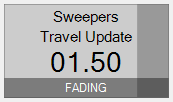
Fading: in Playback operation mode, to fade out and stop the player when it is playing, simply click the box again. The player will turn a dark shade of gray and the status FADING will be shown. To force a stop and bypass fading click the box once again. The fade time is configured in Settings. By default the playback sequence is Play, Fade out, Stop. This can be changed by editing a cart. Possible options are to immediately stop and not fade (Play, Stop) or cease looping if the cart is looping (Play, Cease loop, Fade out, Stop). When the loop has ceased, the status FINISHING will be shown and the cart will play until the end or until the cart is clicked again when it will fade and stop.
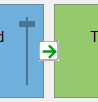
Segue arrows: create automatic transitions between QuickCarts. When in Edit operation mode, click the box between two QuickCarts (either horizontally or vertically) to display a green arrow indicating the segue direction. When the first QuickCart reaches the cue out point, it will automatically trigger the QuickCart in the direction of the arrow. Click the arrow again to reverse its direction, or click once more to remove the segue completely. This feature is useful for creating sequences of jingles, beds, or promotional content that need to play in a specific order without manual intervention.
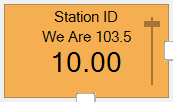
Gain: when in Edit Mode, you can also change the gain on the audio if it is too loud or quiet. By default, the gain slider only appears in Edit mode. You can show it all the time, or not at all by changing the setting in Settings.
Page indicator

Indicates the position of the current page in relation to the other pages. Click a circle to navigate to that page.
Playback operation mode

Click the hand button to enter the Playback operation mode. This will allow you to play, fade out and stop the players.
Edit operation mode

Click the pencil button to enter the Edit operation mode. In this mode when you click a QuickCart the Edit QuickCart window will appear. This will allow you to select a new track or file and optionally override the artist and title. Right click a QuickCart to eject the player when in Edit operation mode.

In Edit mode the cart grid reveals the segue placeholders between carts and the per-cart gain slider, so you can wire up segues and trim cart levels without leaving the main window.
Paint operation mode

Click the paint bucket button to enter the Paint operation mode. In this mode when you click a QuickCart the background color of the QuickCart will change. To change the color that is painted, double-click the paint button. This will allow you to select a new color.
While in Edit or Paint mode, hold the CTRL key to temporarily enter Playback mode.
Full-screen mode

Click the full-screen button to maximize PlayIt Cartwall to the full width and height of the screen. When in full-screen mode the menu will also be hidden.