The Edit Schedule Item window is shown when editing a schedule item via the schedule grid, or adding a new schedule item via the Add New button from the Schedule window.
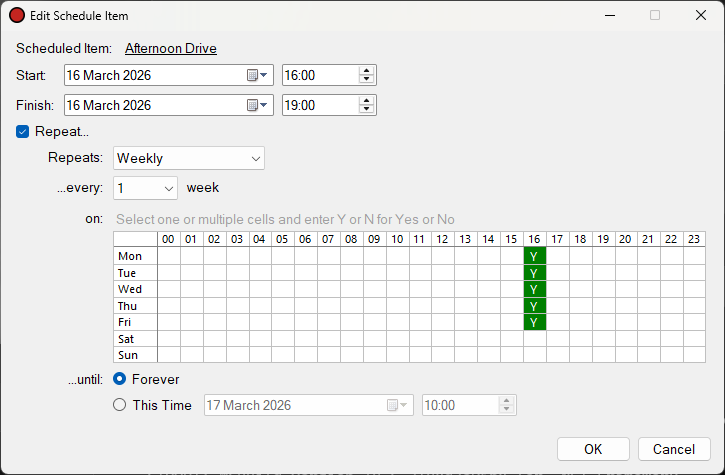
The Edit Schedule Item window.
Scheduled Item

The scheduled programme to be recorded. Click the link to select a different programme. The Select Programme window will be shown.
Start Time

The start time of the recording schedule item.
Finish Time

The finish time of the recording schedule item.
Repeat Checkbox

Whether this schedule item should be repeated.
Repeat Period

How regularly this schedule item should repeat. You can select between Daily, Weekly, Monthly or Yearly.
Repeat Every

How frequently this schedule item should repeat. You can select between every 1 to 14 days, weeks, months or years depending on the repeat period selected.
Repeat On
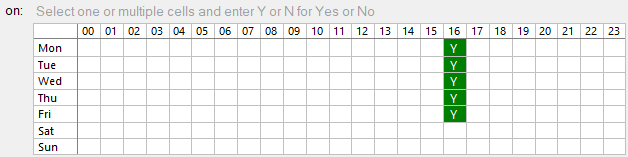
If the Weekly repeat period is selected, you can choose which days and hours the schedule item should also repeat on. For example, you may have a drive time show which repeats weekly Monday to Friday between 4pm and 7pm.
Repeat At

If the Daily repeat period is selected, you can choose which hours the schedule item should also repeat at. For example, if you want to split recordings into hour-long blocks every hour, you can select the Daily "All" hours option.
Repeat Until

Repeat the schedule until a particular date and time. The selected time is inclusive, so if a future recording schedule item starts at this time it will be included.
OK Button

Click the OK button to save changes to the schedule item.
Cancel Button

Click the Cancel button to discard changes to the schedule item.