
Remote Voice Tracking
PlayIt Live can be configure to allow users to connect from another computer at home or another studio and record voice tracks in your playout log. They can also edit the segues and add additional tracks if they wish.
You will need to do the following to allow remote users to connect:
1. Enable remote connections by starting the built-in remote server.
2. Set up users, including username, password, and the hours they are allowed to editing in the playout log.
3. Add voice track placeholders to the playout log where users can record voice tracks.
4. Give the remote URL from step 1 and a username and password from step 2 to the user.
--
1. Enable remote connections
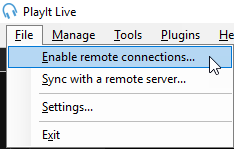
From the main interface, go to File > Enable remote connections...
The default server port of 25433 should be find, click Start Server
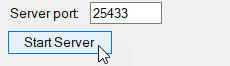
This will enable remote connections to PlayIt Live. Depending on your configuration, you may be required to configure your Windows Firewall and network port forwarding to allow connections from outside your network. You can use the Help me set up external access button to assist you with this.

You can also take a look at this video for more guidance: https://youtu.be/kIyp9CivSAQ?t=1m22s
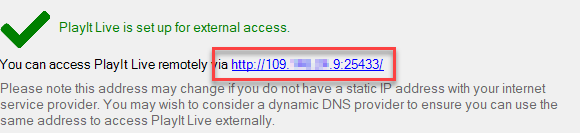
Under external access is a remote URL that will be used by the remote user to connect. Take note of this:
2. Set up users
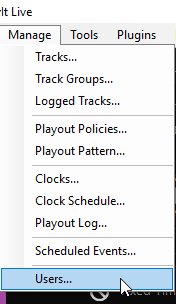
From the main interface, go to Manage > Users
On the Manage Users window, click Add New. Enter a display name, username and password for the user. Then click Add under Remote Voice Tracking to select an hour in the week where the user is allowed to remotely voice track:
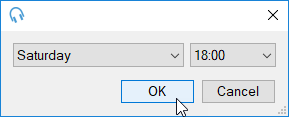
Keep adding more hours that the user should have access to:
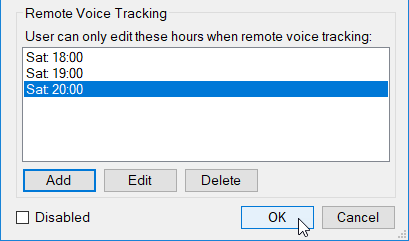
Add more users as necessary.
Click OK on the Manage Users window to apply the changes.
3. Add voice track placeholders
Voice track placeholders are gaps in the playout log where users can record their voice tracks. You can add voice track placeholders to the playout log by dragging the Voice Track button onto the playout log:
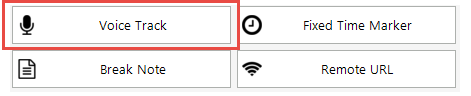
You can use the Go To Time button  to go straight to an hour to drop voice tracks for a future hour.
to go straight to an hour to drop voice tracks for a future hour.Alternatively you can add voice track placeholders directly via Manage > Playout Log or via a clock via Manage > Clocks. If a user starts a remote voice tracking session for an hour which has not yet been scheduled in the playout log, PlayIt Live will automatically schedule this hour.
4. Connect a user
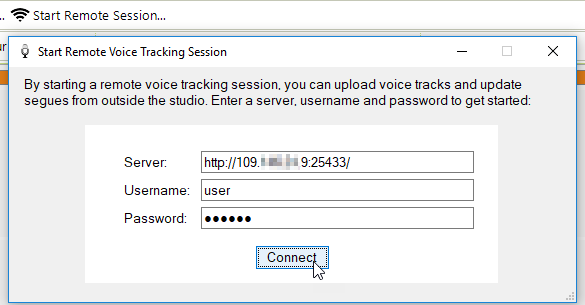
Once you have set up the above, contact your remote trackers sending them the remote URL and their username and password. Remote voice trackers are required to use PlayIt VoiceTrack to connect. Please refer to the PlayIt VoiceTrack documentation for details of setup of remote voice tracking from a remote voice tracker's perspective.
A note on licensing:
A Voice Tracking module purchase is required to broadcast voice tracks via PlayIt Live. Remote voice trackers do not require the Voice Tracking module to send their voice tracks to PlayIt Live. Only a limited number of users can be connected concurrently. This is determined by the number of users that were selected when purchasing the Voice Tracking module.