

×
Menu
Index

Edit Clock Window

Edit Clock Window
 
1

Clock name

1. Clock name
The name of the clock.
2

Clock item list

2. Clock item list
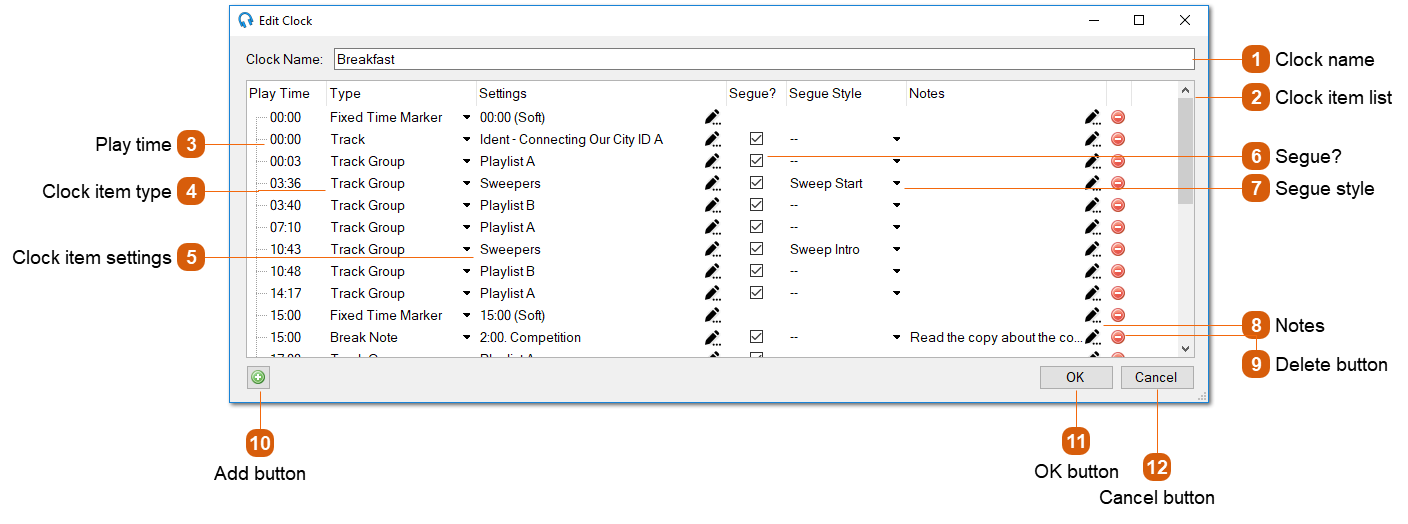
The list of items in the clock. Each item features its approximate play time, type, settings, segue flag and notes. To duplicate an item, select it and press CTRL+D. You can also copy a clock item with CTRL+C and paste it somewhere else with CTRL+V. Click and drag items to re-order them in the list.
3

Play time

3. Play time
The approximate play time of a clock item is determined from the sum of the all the previous item durations. The duration of each item varies on the choice of settings - the duration of a track group item is determined from the average duration of all the tracks in the group. A fixed time marker will cause the play time to reset to the fixed time.
4

Clock item type

4. Clock item type
 
The type of the clock item.
5

Clock item settings

5. Clock item settings
6

Segue?

6. Segue?
When this checkbox is checked it will mark the scheduled playout log item with the same segue selection.
7

Segue style

7. Segue style
The segue style to apply to the scheduled playout log item. If '--' then the default will be used. For tracks marked as sweeper the default from Settings will be used.
8

Notes

8. Notes
Click the edit item to add notes about this clock item. This is purely for informational purposes.
9

Delete button

9. Delete button
Click the Delete button to remove the clock item.
10

Add button

10. Add button
Click the Add button to add a clock item to the end of the list.
11

OK button

11. OK button
Click the OK button to confirm changes to the clock.
12

Cancel button

12. Cancel button
Click the Cancel button to discard changes.