# PlayIt Cartwall - User Guide
**Version 2.03**
## Contents
**Installation**
- [Installation](#installation-installation)
- [Upgrading Versions](#installation-upgrading-versions)
- [Uninstallation](#installation-uninstallation)
**Getting Started**
- [Getting Started](#getting-started-overview)
- [Logging In](#getting-started-logging-in)
- [Enter Registration Details](#getting-started-enter-registration-details)
- [Activating Offline](#getting-started-activating-offline)
**Main Window**
- [The Main Window](#main-window)
- [QuickCart Pages Window](#main-window-quickcart-pages)
- [Edit QuickCart Window](#main-window-edit-quickcart)
**Settings**
- [Settings Window](#settings)
- [Keyboard Settings](#settings-keyboard)
**About**
- [About PlayIt Cartwall](#about)
---
# Installation
To install PlayIt Cartwall, download the latest version from the [PlayIt Software website](https://www.playitsoftware.com/Products/Cartwall).
See also: [Upgrading versions](/PlayItCartwall/203/en-US/installation/upgrading-versions) and [Uninstallation](/PlayItCartwall/203/en-US/installation/uninstallation).
## Installation Steps
### Download the installer
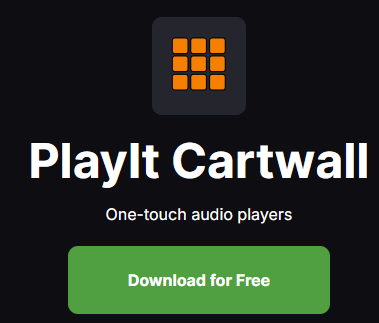
Visit [playitsoftware.com/Products/Cartwall](https://www.playitsoftware.com/Products/Cartwall) and click the **Download for Free** button to download the latest version.

### Run the installer
Once the download is complete, run the downloaded **.exe** file.

### Accept the license agreement
You will first be presented with the software license agreement. Once you have read and agree to these terms, click **I Agree**.
### Choose components
Choose the components to install. Here you can select whether to install Start Menu and Desktop shortcuts. Click **Next** to continue.
### Choose install location
Choose the location to install the software. By default, this is in **Program Files**, but can be changed to your preference. Click **Install** to begin installation.
### Launch PlayIt Cartwall
Check **Start PlayIt Cartwall** and click **Finish** to launch PlayIt Cartwall. By default you can access PlayIt Cartwall from the Start Menu or Desktop.
## Minimum Requirements
PlayIt Cartwall requires the .NET Framework 4.7.1 which is automatically downloaded and installed via the installer. To install this framework requires at least Windows 10 or Windows 11; or Windows Server 2016 or later, with all Windows updates applied.
---
# Upgrading Versions
New versions of PlayIt Cartwall are regularly available from [playitsoftware.com/Products/Cartwall](https://www.playitsoftware.com/Products/Cartwall). It is important to back up your data before you install any new versions. Data and logs for PlayIt Cartwall are stored in the Windows 'ProgramData' folder.
By default, this is located at:
> **C:\\ProgramData\\PlayIt Cartwall**
To back up your data, simply copy this folder to an alternative location, such as an external hard drive.
When a new version is installed, or an old version is uninstalled, the data in the location above will not be removed.
---
# Uninstallation
When installed, PlayIt Cartwall will include an **Uninstall** shortcut in the Start Menu.
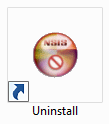
If you chose not to add Start Menu shortcuts, the uninstaller can be found at (by default):
> **C:\\Program Files (x86)\\PlayIt Cartwall\\uninstall.exe** or **C:\\Program Files\\PlayIt Cartwall\\uninstall.exe**
Double-click the icon to start the uninstall process. Click **Uninstall** to remove PlayIt Cartwall.
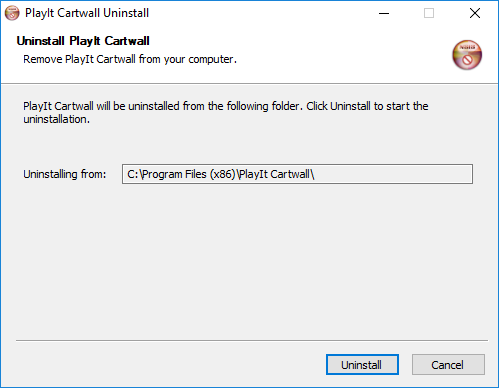
Note that you can choose whether PlayIt Cartwall data is removed when you uninstall.
---
# Getting Started
In order to begin using PlayIt Cartwall, you need to log in to your PlayIt Software account. Click the **Log In** button to begin [logging in](/PlayItCartwall/203/en-US/getting-started/logging-in). If you do not have an account, you can create one for free by clicking **Register** or visiting [playitsoftware.com/Account/Register](https://www.playitsoftware.com/Account/Register).
If the computer you are using is not connected to the internet, you can [activate offline](/PlayItCartwall/203/en-US/getting-started/activating-offline).
---
# Logging In
To get started with PlayIt Cartwall, click on the **Log In...** button in the **Get Started** window. This will take you to a web browser where you will be prompted to log in using your PlayIt Software account.
To access PlayIt Cartwall, enter your account email address and password, or log in using your Facebook account.
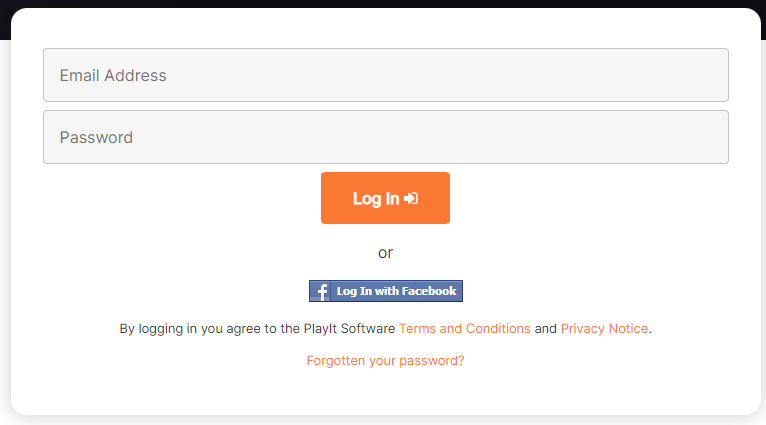
Once you are logged in, the main window will be shown.
---
# Enter Registration Details
If you do not already have an account, click on the **Register...** button in the **Get Started** window. This will take you to a web browser where you will be prompted to register for your PlayIt Software account.
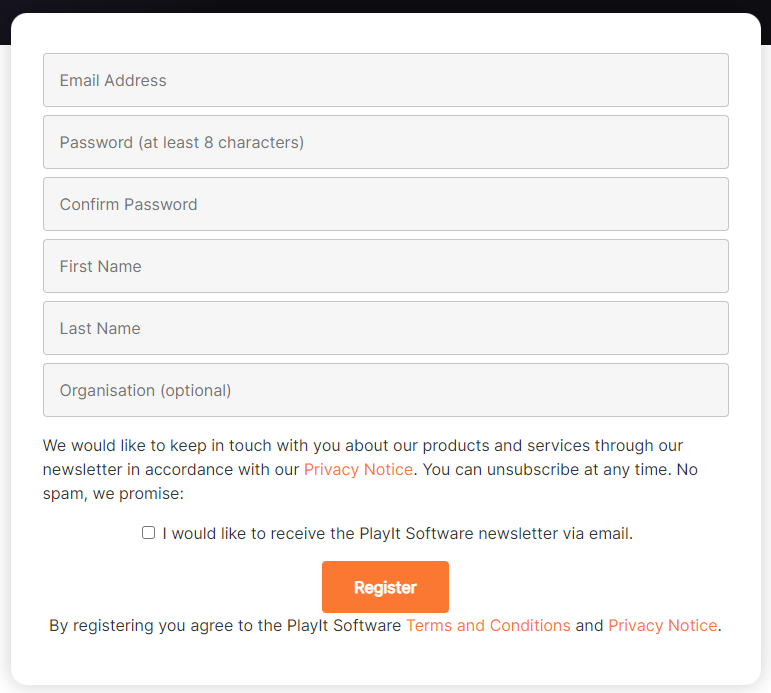
After clicking **Register**, you will be prompted to verify your email address. Please check your registered email account for an email from PlayIt Software with the subject **"PlayIt Software: Please verify your email address..."**. To ensure that you receive this email, please add **[noreply@playitsoftware.com](mailto:noreply@playitsoftware.com)** to your address book.
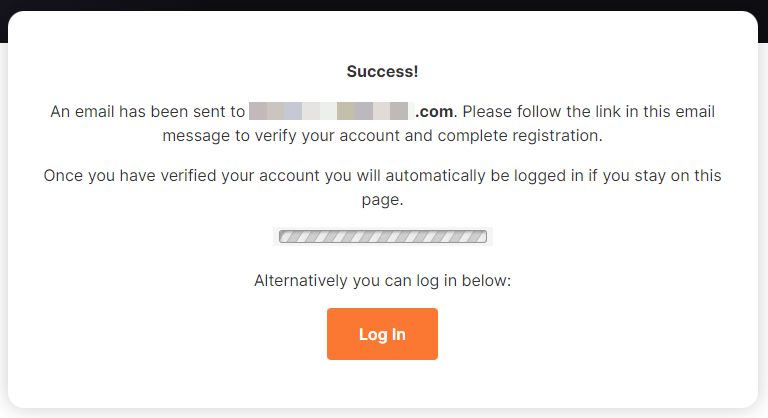
Once you have followed the verification link in the email, you will be logged in to PlayIt Cartwall and the main window will be displayed.
---
# Activating Offline
If the computer on which you have installed PlayIt Cartwall is not connected to the internet it is possible to activate offline.
From the **Activation** window, click **Activate Offline...**
Activate PlayIt Cartwall offline.
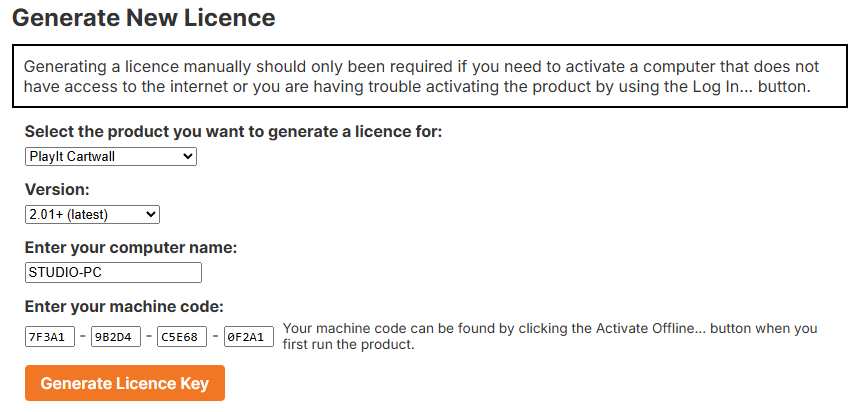
From the Activate Offline window, you can enter your License Key. This is generated from the **Licenses** page in the **My Account** area of the PlayIt Software website. A license can be generated by visiting [playitsoftware.com/Account/Licences/Generate](https://www.playitsoftware.com/Account/Licences/Generate). You may be prompted to log in or create an account.
From the **Generate a New License** option, select PlayIt Cartwall and ensure that v2.01+ is selected as the version. Enter the Computer Name and Machine Code you see on PlayIt Cartwall and click **Generate License Key**.
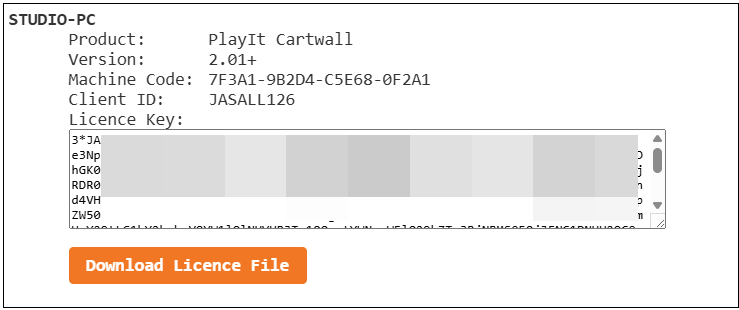
Once generated you will be presented with a license. Make a note of the **License Key** and copy this to the PlayIt Cartwall window. Alternatively, download the license file and select the file within PlayIt Cartwall. Note that license keys start with the text **3**\*.
---
# The Main Window
When PlayIt Cartwall first starts you will be presented with a grid of QuickCarts with the default configuration using the default sound card audio device. Here you can drag and drop audio files from the file system, e.g. Windows Explorer, to load them into a QuickCart. You can add pages by clicking on the page name at the top. The carts and pages you add will be saved and will be available the next time you run PlayIt Cartwall.
The PlayIt Cartwall main window with carts loaded on the first page.
### Menu
The top menu bar provides options to set up PlayIt Cartwall.
The **File** menu contains:
- **Settings...**: Configure the user interface and audio devices.
- **Exit**: Close PlayIt Cartwall.
The **Help** menu contains:
- **Online documentation...**: A link to the documentation page on the PlayIt Software website.
- **About PlayIt Cartwall...**: View the latest version and check for updates.
### Paging controls
QuickCarts can be shown on multiple pages. This is convenient if specific jingles are used on certain shows so a page can be created for later use.
Use the left and right arrows to navigate pages and click the page name to launch the [QuickCart Pages](/PlayItCartwall/203/en-US/main-window/quickcart-pages) window.
### Row of QuickCarts
QuickCarts can be displayed in multiple rows.
**Loaded:** the player appears in the default color displaying the artist and the title of the track with the remaining time below.
**Playing:** in Playback operation mode, to start the player, simply click anywhere in the box. When playing, the progress is shown as the background and the status **PLAYING** will be shown. If the cart is configured to Loop, when the position reaches the Loop B point (or the end if Loop B is not set) it will return to the Loop A point and continue playing. The status **LOOPING** will be shown. If the cart is configured as Solo, then when this cart is played, all other playing carts will fade out and stop. It will also fade out and stop if any other carts start playing. Solo carts are designed to be the only cart playing at any particular time.
**Fading:** in Playback operation mode, to fade out and stop the player when it is playing, simply click the box again. The player will turn a dark shade of gray and the status **FADING** will be shown. To force a stop and bypass fading click the box once again. The fade time is configured in [Settings](/PlayItCartwall/203/en-US/settings). By default the playback sequence is Play, Fade out, Stop. This can be changed by [editing a cart](/PlayItCartwall/203/en-US/main-window/edit-quickcart). Possible options are to immediately stop and not fade (Play, Stop) or cease looping if the cart is looping (Play, Cease loop, Fade out, Stop). When the loop has ceased, the status **FINISHING** will be shown and the cart will play until the end or until the cart is clicked again when it will fade and stop.
**Segue arrows:** create automatic transitions between QuickCarts. When in Edit operation mode, click the box between two QuickCarts (either horizontally or vertically) to display a green arrow indicating the segue direction. When the first QuickCart reaches the cue out point, it will automatically trigger the QuickCart in the direction of the arrow. Click the arrow again to reverse its direction, or click once more to remove the segue completely. This feature is useful for creating sequences of jingles, beds, or promotional content that need to play in a specific order without manual intervention.
**Gain:** when in Edit Mode, you can also change the gain on the audio if it is too loud or quiet. By default, the gain slider only appears in Edit mode. You can show it all the time, or not at all by changing the setting in [Settings](/PlayItCartwall/203/en-US/settings).
### Page indicator
Indicates the position of the current page in relation to the other pages. Click a circle to navigate to that page.
### Playback operation mode
Click the hand button to enter the Playback operation mode. This will allow you to play, fade out and stop the players.
### Edit operation mode
Click the pencil button to enter the Edit operation mode. In this mode when you click a QuickCart the [Edit QuickCart](/PlayItCartwall/203/en-US/main-window/edit-quickcart) window will appear. This will allow you to select a new track or file and optionally override the artist and title. Right click a QuickCart to eject the player when in Edit operation mode.
In Edit mode the cart grid reveals the segue placeholders between carts and the per-cart gain slider, so you can wire up segues and trim cart levels without leaving the main window.
### Paint operation mode
Click the paint bucket button to enter the Paint operation mode. In this mode when you click a QuickCart the background color of the QuickCart will change. To change the color that is painted, double-click the paint button. This will allow you to select a new color.
While in Edit or Paint mode, hold the **CTRL** key to temporarily enter Playback mode.
### Full-screen mode
Click the full-screen button to maximize PlayIt Cartwall to the full width and height of the screen. When in full-screen mode the menu will also be hidden.
## See also
- [QuickCart Pages](/PlayItCartwall/203/en-US/main-window/quickcart-pages)
- [Edit QuickCart](/PlayItCartwall/203/en-US/main-window/edit-quickcart)
- [Settings](/PlayItCartwall/203/en-US/settings)
---
# QuickCart Pages Window
The QuickCart pages window is used to make changes to the pages found in the main window. All actions performed in the window will be applied immediately.
The QuickCart Pages window with the second page selected.
### Page list
The page list box shows the list of pages in order. Select a page here to rename it, delete it, or change its position in the list. Double-click on an item in the page list to make it 'current' and quickly navigate to that page on the [main window](/PlayItCartwall/203/en-US/main-window).
### Add Page button
Click the Add Page button to add a new page to the bottom of the list.
### Rename Page button
Click the Rename Page button to rename the selected page.
### Delete Page button
Click the Delete Page button to delete the selected page. A confirmation window will appear to ensure you want to delete the page as this is an irreversible action. It is not possible to delete the last remaining page.
### Move Up button
Click the Move Up button to move the selected page one position up in the list.
### Move Down button
Click the Move Down button to move the selected page one position down in the list.
### Close button
Click the Close button to close the window.
## See also
- [Main Window](/PlayItCartwall/203/en-US/main-window)
- [Edit QuickCart](/PlayItCartwall/203/en-US/main-window/edit-quickcart)
---
# Edit QuickCart Window
The Edit QuickCart window allows you to edit individual QuickCart settings. Open it from the [main window](/PlayItCartwall/203/en-US/main-window) by switching to Edit operation mode and clicking the cart you want to change.
### File path
The path to the audio file on the file system. Click the **Browse** button to select a new audio file.
### Artist
Edit the artist text to change the artist that is displayed on the QuickCart on the main window.
### Title
Edit the title text to change the title that is displayed on the QuickCart on the main window.
### Background color
Click the color box to select a new background color for the QuickCart. Click **Use default** to revert to the default color configurable in [Settings](/PlayItCartwall/203/en-US/settings).
### Solo
If **Solo** is checked, when the cart is played it will cause all other carts to fade out and stop. This cart will also fade out and stop when any other cart starts playing. Solo ensures this cart is the only cart playing at any particular time.
### Loop
If **Loop** is checked, when the cart is played it will loop between points **Loop A** and **Loop B**. The Loop A and Loop B cue points will appear in the Cue Points section when Loop is checked. If Loop B is not set, the cart will loop from the end of the cart. If Loop A is not set, the cart will seek to the **Cue In** point when the loop point is reached.
### Playback sequence
The playback sequence determines how the cart behaves when the cart is clicked on the main interface. In this example, the cart will **Play**, then **Fade out**, then **Stop** in turn for each mouse click. To change how the cart behaves, click any blue link, for example clicking **Fade out** lets you choose **Stop** instead so that the sequence becomes Play then Stop.
For looping carts there are additional options. **Cease loop** stops the cart from looping any further so it behaves like a non-looping cart. **Go to Loop B** causes the cart to jump to the end of the loop sequence, which is useful for a background bed that loops but also has an outro you want the listener to hear when you have finished speaking.
### Cue points
The **Cue In** point is the position in seconds where the track should be started by a player. Use the **Set** button while listening to the track to set the point to the current position. Use the **Test** button to listen to the track from the set position.
The **Cue Out** point is the position in seconds where the track finishes. This is the point at which a [segue](/PlayItCartwall/203/en-US/main-window) triggers the next QuickCart. By default it is set to the end of the audio. Use the **Set** button to set the point to the current position and the **Test** button to preview it.
For looping carts there are two additional cue points, **Loop A** and **Loop B**, which define the start and end of the loop region. Use the **Set** and **Test** buttons next to each to capture and preview them.
### Waveform
The waveform shows the volume of the audio track over time. The **Cue In** point set above is overlaid on the waveform in green and the **Cue Out** point in red, and for looping carts the **Loop A** and **Loop B** points are also shown. Double-click anywhere on the track to play from that position. Use the mouse wheel or the zoom in and out buttons to zoom in to set a cue point more precisely.
### Playback buttons
Use the **Play** and **Stop** buttons to listen to the track. Use the **Back** and **Forward** buttons to jump to the start and end of the track. The current position in the track is shown alongside the buttons. The audio device used to play back the audio can be configured in [Settings](/PlayItCartwall/203/en-US/settings).
### Analyze button
Click the **Analyze** button to automatically detect the Cue In point based on the silence at the start of the QuickCart track.
### OK button
Click **OK** to confirm changes to the QuickCart.
### Cancel button
Click **Cancel** to discard changes to the QuickCart.
## See also
- [The Main Window](/PlayItCartwall/203/en-US/main-window)
- [QuickCart Pages Window](/PlayItCartwall/203/en-US/main-window/quickcart-pages)
---
# Settings Window
The user interface and audio devices can be configured from the Settings window. Open it from the [main window](/PlayItCartwall/203/en-US/main-window) by going to **File > Settings**.
### Language
The language used for the PlayIt Cartwall user interface. Pick your preferred language from the dropdown and restart PlayIt Cartwall for the change to take effect. If you switch to a language by accident and can no longer read the menus, see [Changing the language back](#changing-the-language-back) at the bottom of this page.
### Playback audio device
QuickCarts can be assigned to a particular audio device (typically a sound card) on your computer. Choose the device used for playback on the main window from this dropdown.
### Editor audio device
The audio device (sound card) used for playback in the [Edit QuickCart window](/PlayItCartwall/203/en-US/main-window/edit-quickcart).
### Number of rows
The number of QuickCart rows that are displayed per page. As more QuickCart rows are displayed they will be resized to fit the available space on the screen.
### Number of carts per row
The number of QuickCarts that are displayed per row (or number of columns). As more QuickCarts are displayed per row they will be resized to fit the available space on the screen.
### Default cart color
The default color of a QuickCart. When an audio file is dropped from the file system, this color will be shown by default. To change the color click the **Change** button or click in the color in the box.
### Show gain slider
Controls when the gain slider is displayed on QuickCarts. The gain slider allows you to adjust the playback volume of individual QuickCarts, which is useful for balancing audio levels between different jingles, beds and promos that may have been recorded at different volumes. Choose from three options:
- **Never:** the gain slider is not displayed, providing the most streamlined interface.
- **When loaded:** the gain slider appears on all loaded carts at all times, providing quick access to volume adjustments during live broadcasts.
- **When editing:** the gain slider only appears when in Edit operation mode, keeping the interface cleaner during normal playback while still allowing level adjustments when needed.
### Track fade time
Use the dropdown to select the time it will take to fade out a track when a QuickCart is clicked to fade.
### Startup
Check this box to automatically start PlayIt Cartwall after you log into the computer.
### OK button
Click the **OK** button to confirm your changes.
### Cancel button
Click the **Cancel** button to discard your changes.
## Changing the language back
If you switch to a language by accident and can no longer read the menus, you can still find your way back to this setting. Open the menu at the top left (the **File** menu), choose the **Settings** item, then use the **Language** setting at the top of the Settings window. The table below gives those two menu labels in each language:
Language
File menu
Settings item
Deutsch (Deutschland)
Datei
Einstellungen...
English (United Kingdom)
File
Settings...
English (United States)
File
Settings...
Español (España)
Archivo
Configuración...
Español (Latinoamérica)
Archivo
Configuración...
Français (France)
Fichier
Paramètres...
Italiano (Italia)
File
Impostazioni...
Nederlands (Nederland)
Bestand
Instellingen...
Português (Brasil)
Arquivo
Configurações...
## See also
- [Keyboard Settings](/PlayItCartwall/203/en-US/settings/keyboard)
---
# Keyboard Settings
The Keyboard tab of the [Settings window](/PlayItCartwall/203/en-US/settings) lets you bind PlayIt Cartwall actions (commands) to keyboard shortcuts. Select an item in the list to edit the binding.
### Keyboard binding list
This list shows the possible commands to which you can bind a keyboard shortcut. Select a command in the list to edit the keyboard binding in the panel below.
### Edit keyboard binding section
Once you have selected a binding from the list, edit it here. When no key is currently bound the text '' is shown beside the modifier check boxes.
In the screenshot shown, the keyboard shortcut **CTRL + Right** is bound to move to the next QuickCart page. To set up this binding from scratch, check **CTRL** and click the '' box. You will be prompted to press a key. Press the Right arrow on your keyboard and the shortcut is configured. Click **Clear** to remove an existing shortcut.
### Global trigger
Check this checkbox to trigger keyboard commands even when PlayIt Cartwall is not the active window.
Choose keyboard shortcuts carefully. For example, it is not recommended to bind the Space Bar as a shortcut, as it would fire whenever you typed a space into any text box.
## See also
- [Settings Window](/PlayItCartwall/203/en-US/settings)
---
# About PlayIt Cartwall
The About window displays the current version of PlayIt Cartwall, checks whether a newer version is available and shows how long the application has been running. Open it from the [main window](/PlayItCartwall/203/en-US/main-window) by going to **Help > About PlayIt Cartwall**.
The About window when the software is up to date.
### Current Version
Displays the currently installed version of PlayIt Cartwall.
### New Version Check
Indicates whether the installed version is up to date. When a newer version of PlayIt Cartwall is available you will be notified here with a link to download the latest version.
### Up Time
Shows how long PlayIt Cartwall has been running since it was last started.
### OK button
Click the **OK** button to close the window.